Within the company security tab is the comps reports feature.
This allows you to compare a Targets company to a range of its peers all within a single report.
To get onto this tab, first you need to load up your target company.
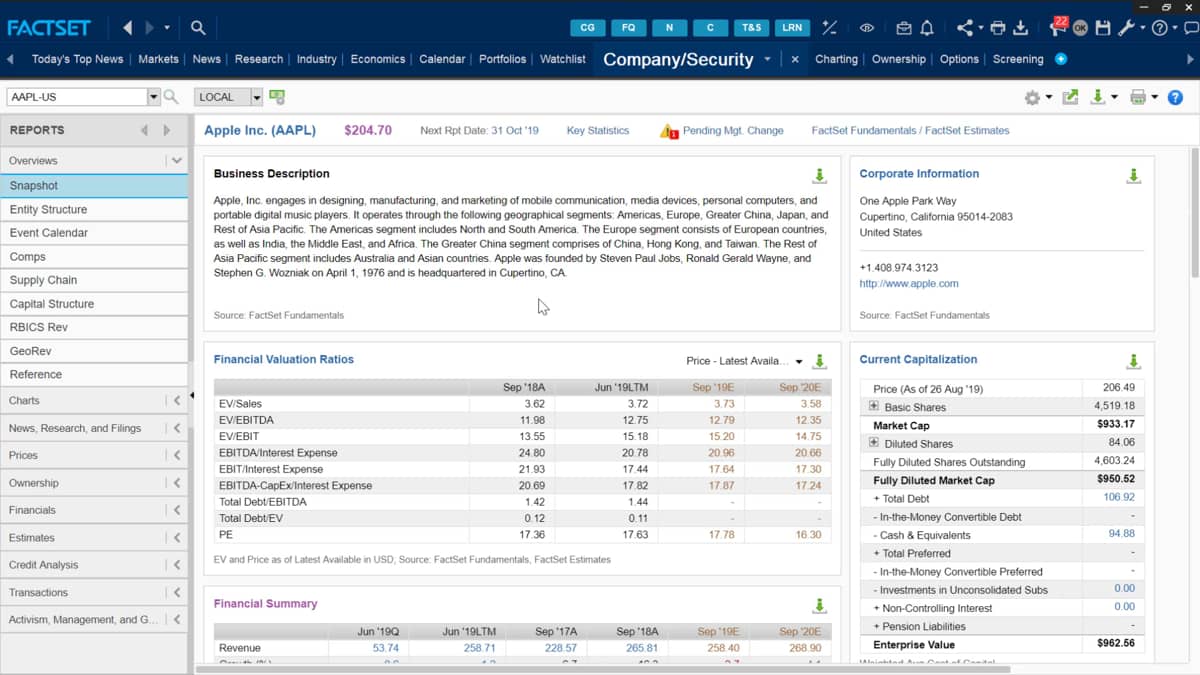
In my case, I have got Apple loaded in the FactSet overview tab here, and you then need to make your way over to the overview and then comps.
This will display a default selected financials reports.
Alternatively, if you are already on this page, you can reload a new target company at the top left with the search bar.
Here you can search for the identifier or use the company type ahead search to find the company.
In this default report, you'll find a large array of data listed into different columns.
The default metrics include enterprise value, markets value, and ebit, as well as many more.
FactSet provides more than one default report though, and you can find more of these pre-made reports by heading over to the toolbar and clicking the dropdown menu Here, you can use these as a base for your own port to customize.
At the top of the report is the source dropdown list.
This will allow you to change the comparables included in your report from my list.
The first option is personal.
This might be labeled as clients depending on how you save it.
And this is the comps list, which has already been saved to my workstation.
Quick comps will provide a list of companies based off the quick comp settings, and these will be defined in the user settings.
Icon named by Hoovers provides a comps list sourced from Hoovers, named by company, provides a comps list collected by Revere, and this is a company which specializes in company relationships.
Most of facts that data is sourced from this company named by competitors, is a list, which other companies name Apple as their top competitor.
This is also collected from Revere.
And finally is all named by competitors, which is a list named by the target company named our competitors, as well as by Hoovers.
The last point is to understand the breakdown provided by the reports, and you can audit the data within the report by clicking the figure and then the hyperlinked value to launch a separate box.
And this will present the derivation of the value reported.
If you wish to copy the formula, then click this copy icon followed by equals FDS code.
And if you want, you can then paste this into an Excel spreadsheet.
I.

 Factset-keyboard-shortcuts-for-Excel

