Once you have found the file you are looking for, you can use operations and filters to make more advanced search queries.
The first filter is the column filter tab found at the top here.
If, for example, you are on the annuals interims report, you can select or deselect reports in the form column.
Grouping search results allow you to organize and navigate large amounts of data for easy viewing.
By selecting the form of your choice, you can right click and click grouping, so the results are arranged by date, language source, or form type.
The reports are now arranged into readable content, which you can maximize or minimize with the plus and minus icon here.
To reverse this change, just right click again on any reports, click grouping, and then choose none.
Sometimes you may only be looking for a particular item within a report by using the keyword search bar at the top.
You can search all the filings at once to find the information you want.
You start by entering your keyword search in the box.
Any previous searches are displayed at the bottom in this box here.
To further narrow down your search, you can make use of the Boolean operations.
These include searches with only exact matches, nearest and or not functions displayed here.
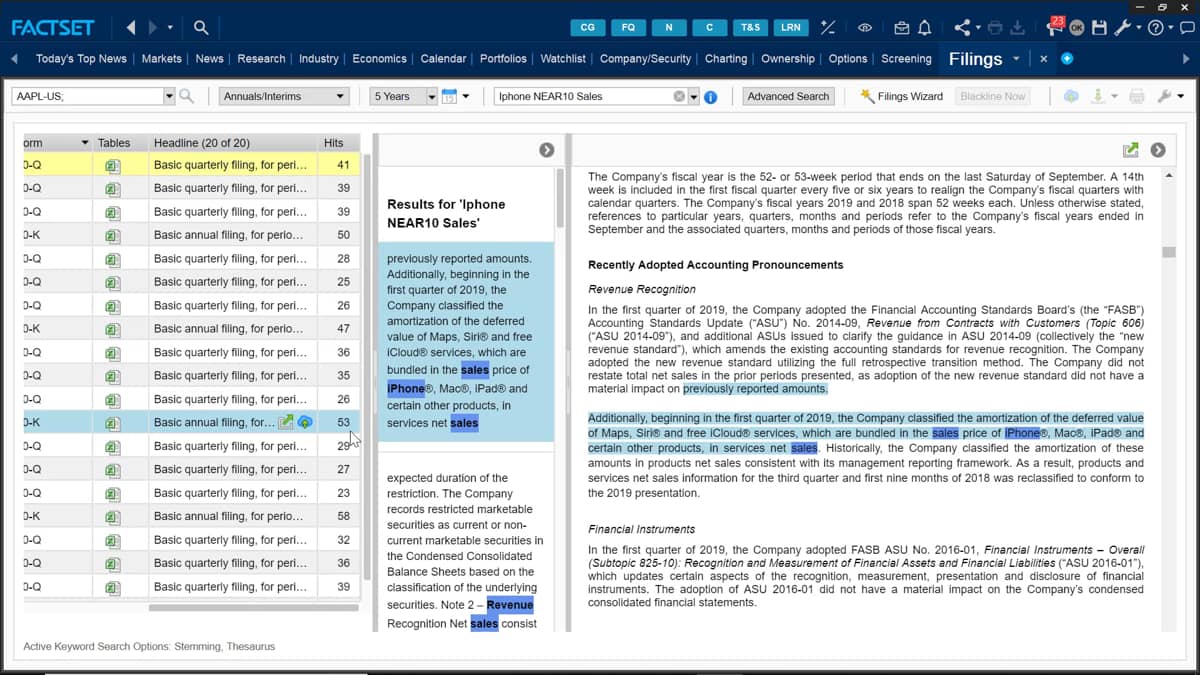
For example, I may be on Apple's page and want to use the near function and can do so by searching for iPhone near 10 sales.
This will only bring results where the word iPhone is 10 words near the word sales.
You can see the total number of results found at the top of the column header.
The hit column on the right will display the number of times your search word or phrase was found. Within each document, you can view all your searches highlighted within the document in the middle display screen.
Here the key word is highlighted in dark blue and surrounded by the context.
Going back up to the search, there are some more useful features you can see.
Below in the box is the stemming and thesaurus box.
The stemming box will return all variations of your search query.
For example, by searching the word earn, the search will display results for earning and earned too.
Thesaurus box will return data containing the key word or its synonyms.
This feature may save you hours when performing document searches in the filings tab.

 Factset-keyboard-shortcuts-for-Excel

