The book Builder tool is an application which allows you to pull together documents, company analytics, and reports from FactSet Library, all into one single PDF document.
You can present this report, email, print, or even review it on a mobile device.
To access the book builder tool, we once again can go to the FactSet search bar up at the top.
The next step is to enter the identifier for the company you want to search.
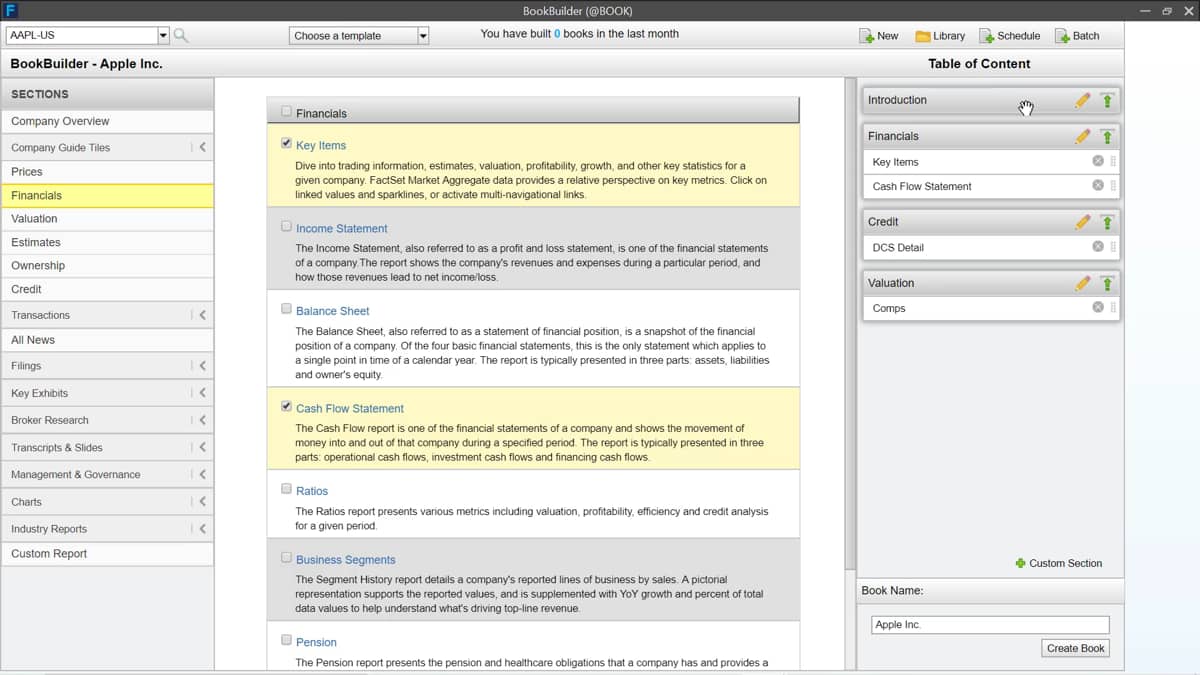
I'm going to use Apple in my example, so let's go through the layout of this page.
At the top is the search bar, which contains the identifier, change the company you want to report for at any time.
By selecting the identifier lookup key found here, the left hand pan is your content library.
Here is where you can access all available documents stored in FactSet Library.
Quickly scroll through and select which data you want to include in your book.
There is a large array of data available, available, including company overviews, credit ratings, valuation, multiples, filings, as well as company news, and much more.
To add a data item in your book, simply select from the left hand pane to load the sub list of contents in the middle.
Then by ticking the box, you can add each item.
Every item you add will be shown on the right panel, what is known as your table of contents.
The contents represents the layout or formatting of your book.
It's completely customizable, and each heading can be moved by clicking and dragging to the new desired location.
You can add your own custom section by selecting custom section represented by the small green plus icon here.
Here you can manually name a new section.
This feature might be best if you want to import your own files into the book.
Book builder allows you to import PowerPoint, word RTF, and PDF documents.
Just simply click choose files to locate your documents from your drive, or if you already have where they're stored loaded.
Then simply click and drag the files into this box.
Once all the content has been added and you are happy with the formatting of your report, just head down to the bottom to name your reports.
By default, it'll be named the same as your identifier.
Now you are ready to create your book fax.
It will automatically bring all the selected data together, including any external files you have added.
All page numbers will be added to your book.
You can toggle this in the settings menu here, depending on the size of the files in the book.
This process may take a while, but as soon as your book is ready, you'll receive an automatic email to confirm your book is now ready to be downloaded.

 Factset-keyboard-shortcuts-for-Excel

