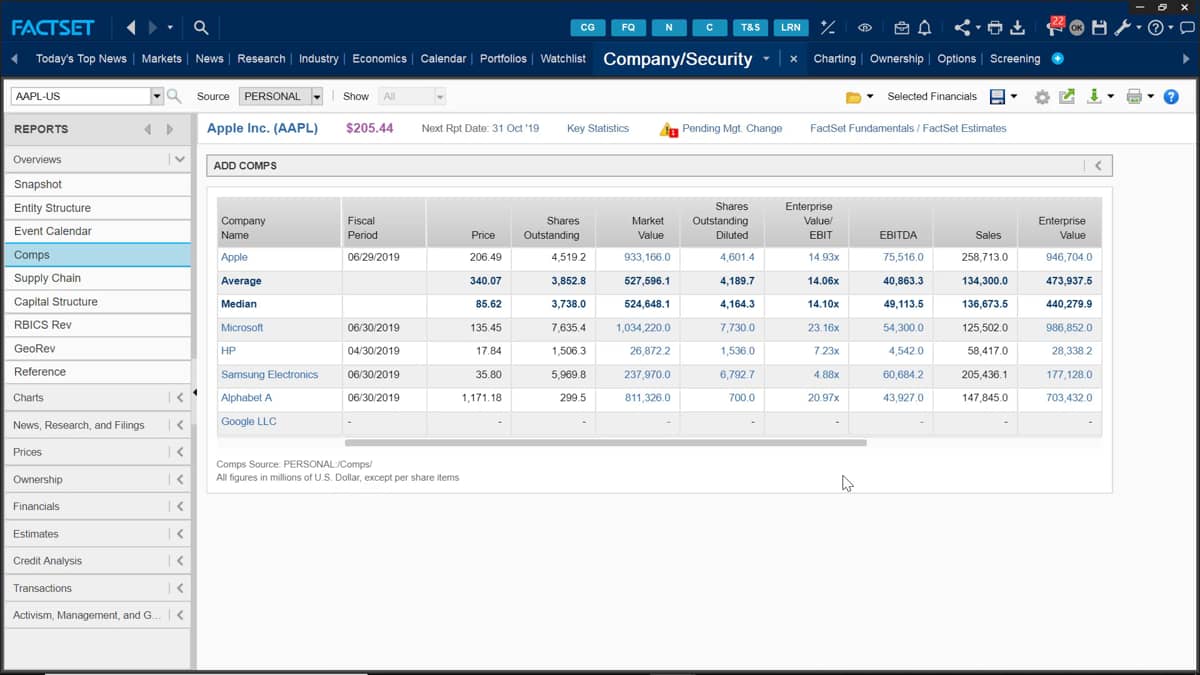
The user settings icon is where you can make changes to your quick comp setting, as well as the general settings of the report.
To do this, you can find the user settings icon at the top right, and it's this small cogs icon.
Click in this. We'll bring up this dialogue box.
On the left hand side are your general settings for the reports.
The source priority enables you to order the priority of the different sources in your table adjusting. This will change the display of the source dropdown field found at the top of your comps page.
You can edit the priorities by selecting a source and moving it up or down with arrow keys underneath. This is where you can make changes to the number of competitors you want FactSet to display.
The default here is five, but you can select many more or less with the dropdown menu below. This also gives you the option to include any private companies within your report.
You can toggle this by clicking the box to select and deselect it.
On the right hand side is where you'll find the quick comp setting.
First is the options to change the grouping of the companies which are returned.
For example, if I click in Target's Industry, this will only bring competitors within my target company's industry.
I can then select the financial characteristics such as closest by sales in the next dropdown list shown below.
Finally, I have the option to adjust whether I want to search for companies in the same location as my target company.
Click and Save will update all of these new changes into your report.
These changes will save as long as you save your FactSet workstation.
I.

 Factset-keyboard-shortcuts-for-Excel

