The idea screening application allows you to enter your screen criteria and generate reports on company mergers and acquisitions, private equity capital, public equity offerings, and private placements.
The main difference between the idea screening application and universal screening is the inclusion of private companies in IDEA screening.
You can find this application by making a direct search through the FactSet search bar up at the top.
You can then create your own templates with selected criteria or use FactSet's own ones.
Once you're on the page, you are then presented with a list of topics where you can search for transactions by an advisor, lists or research private and public companies.
You can also view any previously open screens or favorited ones on the right panel.
The open folder here is where you can access all fact sets on screens, and included in here are recommendations of screening topics from FactSet.
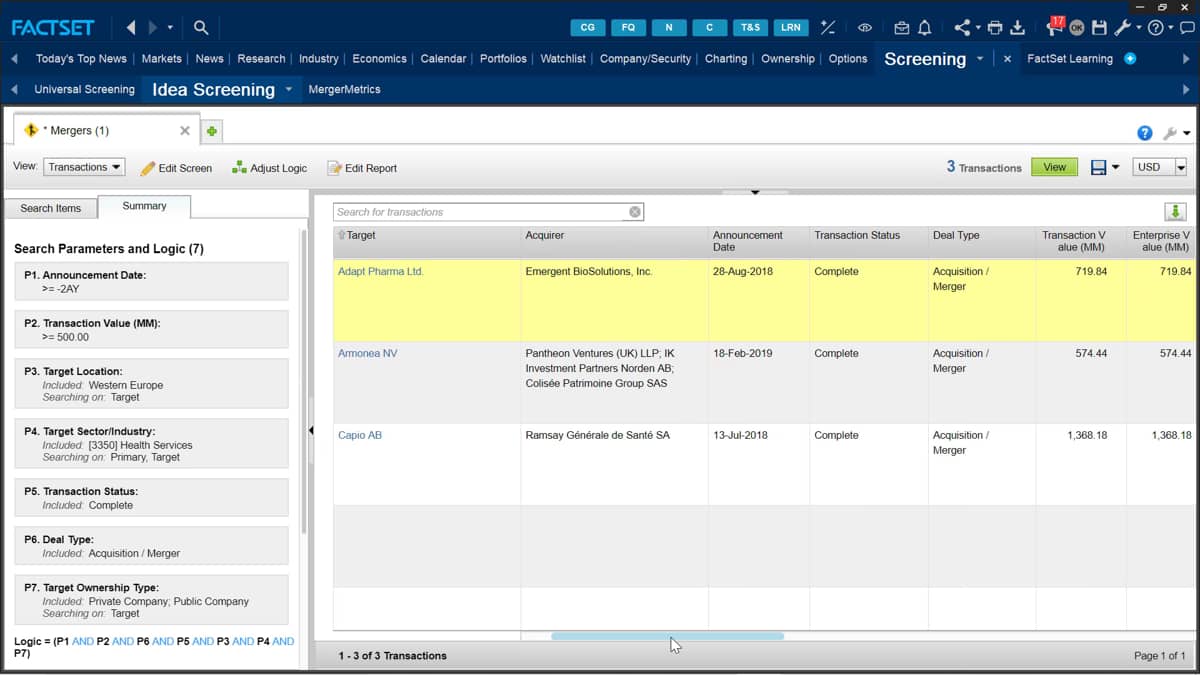
For this example, I'm going to run screen for m and a deals operating in the health service within Europe.
I can start my screening by going to the m and a link under the transaction topic.
This will allow me to screen through all m and a transactions and assign my own screening parameters.
The reports presents a default set of screening options.
I then have the option to remove any of these by selecting the X in the top right hand corner.
Along the left of the page are a list of further screen options.
I can add this to narrow down my search to add these into my screen reports.
I simply click and drag them into the reports.
The top right of the reports presents the total number of results based on the current screen results.
The more criteria I add, the less results that will be brought back.
The results will update after each screen option is added.
For my reports, I said I wanted to search for m and a deals.
I want to start by adding screen criteria to narrow down the results achieved.
So let's do this. First, I only want to view transactions from two years ago or less.
The announcement date allows me to select this, and I can even choose specific dates using the calendar option.
Next, I want to include a minimum transaction value.
The unit is set in millions, and I only want my results to include transactions of 500 million or more.
In this case, the currency is in US dollars, but I can toggle this up at the top right dropdown menu here.
The deal type allows me to select how the transaction was actioned.
I want completed m and a deals, so I need to click the acquisition merger box along with the completed in the transaction status.
Here, there is also the option to include rumors, but for here, I'm going to leave this out in my search.
Now, do I want to search for only in a particular location? Yes, I do. I'm interested in m and a deals, which were completed in Europe.
By searching, I can select multiple predefined searches and add them in.
They show in the box below. My industry is health services.
I can add this in here.
The search box will present a list of all results based on the search, and the list provides the sectors based on the sources.
The top is from FactSet database and for consistency, I'm going to choose this.
Lastly, I can choose the target ownership type.
Do I want to screen for companies owned by the government subsidiary or a public or private company? For my search, I'm going to only bring back results for public and private companies.
I still have the option to bring further criteria into my screen reports. However, for this example, I'm happy with the default screening options and can now press the view box to see the list of results.
The reports loads and each deal has its own id, very similar to the ticker of a company or security.
Clicking the link will provide further detail in the deal detail tab.
I can change the presentation for the listed results with the dropdown view menu found here.
Selecting one of the group options will combine the total volume of results based on industry location and deal announcement date.
The league table allows me to group the results based on the financial advisors for the target, the buyer, or both.
The screen can now be saved by going to the save icon found at the top right corner.
Clicking save screen and completing all required fields including the file name and where you wish to save it.
Clicking the small star will add the screen to the idea screening homepage.

 Factset-keyboard-shortcuts-for-Excel

