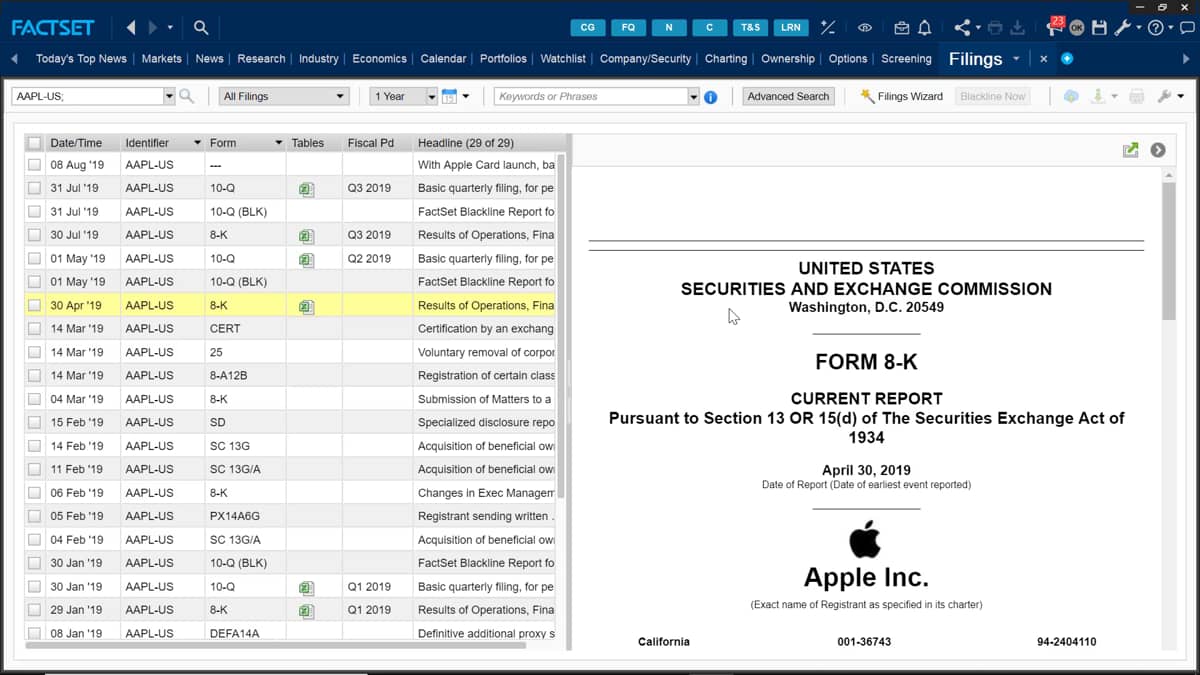
The Filings Wizard tool can be used to search and download financial tables across companies and periods when you are on the filings tab.
The filings wizard button can be found at the top here by clicking the filings wizard button.
You would then be shown this display box.
The first step is to select your company you wish to extract the data tables for.
A neat trick is you can actually select a comps list, which you have previously saved your workstation.
I can find this by selecting the identifier lookup icon and then choosing my saved list for my list.
I have saved this under personal, and if I want, I can select it with the filings wizard tool.
Here though, I am just going to use Apple by default.
The wizard will display all three statements, those being the income statements, balance sheet, and statements of cash flows.
You can toggle these on or off by selecting the boxes.
You can search within the selected tables using the search table text box.
FactSet will display all tables by default to reflect information for the last five fiscal years.
You can change this range by selecting the periods at the data range or by making a custom data range from the calendar.
The left hand pane will display all the tables which match your search criteria.
If you don't see the table you want, then readjust the criteria and perform the search. Again. The filings wizard will only display the tables you wish to search.
You can view the source documents by clicking the hyperlink found under the form column.
Once again, you have the option to download any of the tables by selecting the download icon here.
Once you are complete with your tables, you only need to press the download button to export them into the Excel sheet file.

 Factset-keyboard-shortcuts-for-Excel

