Now you've amended your companies in the comps reports.
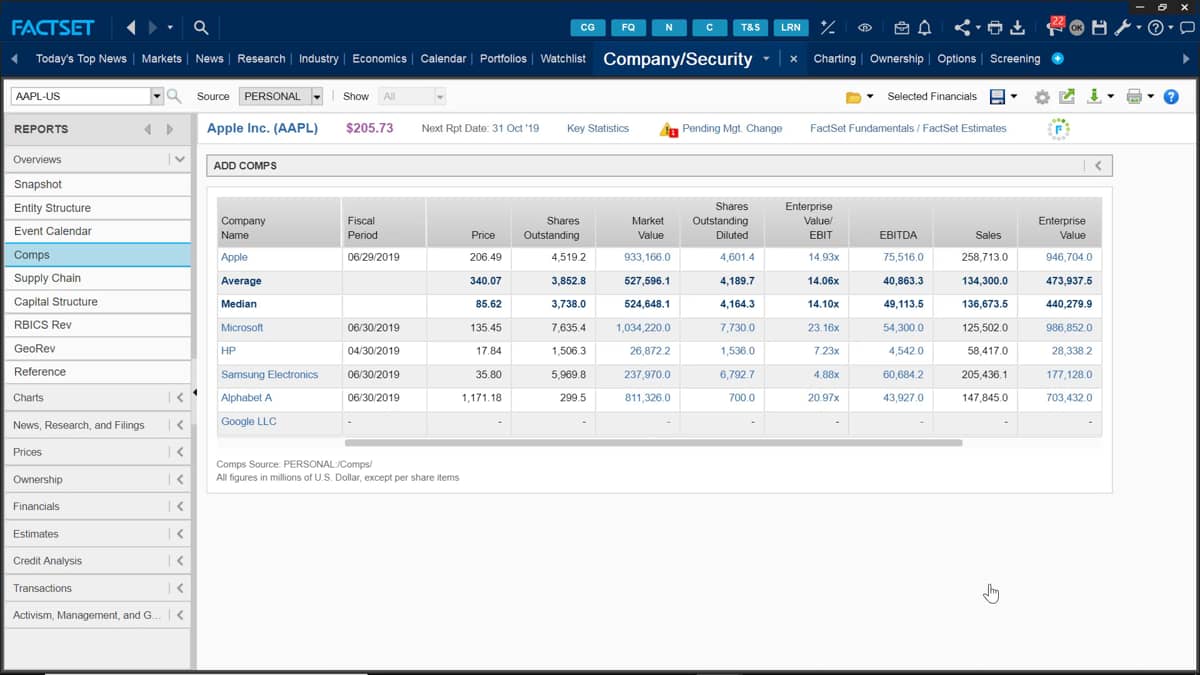
You can also make adjustments to the data items displayed on your reports.
To do this, click the edits report button, which is found up at the top right, and this will launch the edit report dialogue box.
From here, you can rearrange the data items by dragging them like so, or by pressing the move up and move down arrows.
To add a new metric to the table, there are several options.
The first one is you can search for a preset formula within the FactSet database.
You'll find all the categories displayed on the left hand side, and you can search for the item of your choice.
You simply select the one you want and then click the arrow to move it across.
Likewise, you can click the other arrow to remove one with already in your report out of it.
Alternatively, you can search for the data items with the search bar, I can, for example, make a search for net debt and bring the item into my report, and I'll use the same method by clicking the arrows.
The report also lets you bring in data items as spark lines if available.
To do this, select the icon here, which reads show a spark line, or if you prefer, you can have the item displayed as a number.
Hovering your mouse over the spark line will show further information within the report.
The final option is to add your own custom metric by clicking the green plus sign shown here, you'll be displayed with the Windows icon here.
The name is what will be displayed in the right side of the items in the dialogue box, the same as if you were searching for a metric.
The heading is what will be displayed in the actual report, so you want this to be obvious as to what it's showing to the reader.
The formula is how you will derive the data and works the same as the FactSet Excel icon.
You can click the lookup button and you can start searching for formulas straight away.
You then have the option for selecting a number of decimal places for each output and a trailing text.
You're allowed up to free characters in this box.
Clicking the okay button will then update your displayed report with the updated data items.

 Factset-keyboard-shortcuts-for-Excel

