Screened results from the screening tool.
Present all the screen data based on the criteria set for each m and a deal.
We can review the raw data and financials by clicking the deal snapshot link.
Once we're on a transaction doing this, we'll link you to the deal tab.
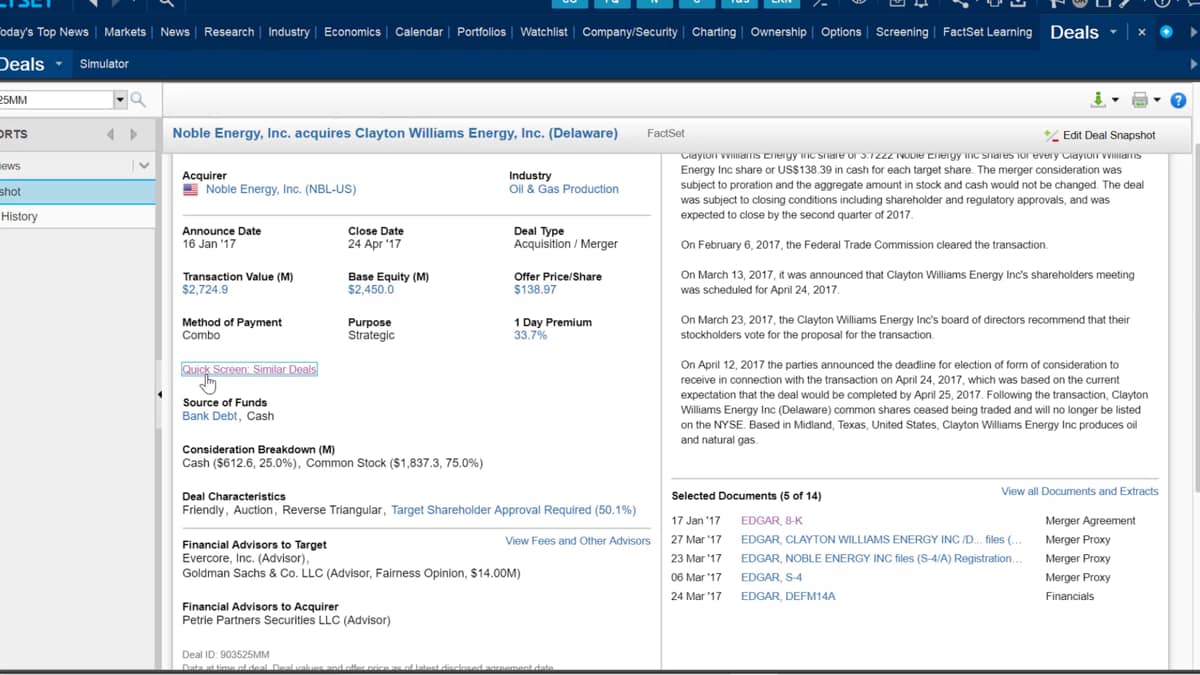
So what data is this tab showing us? First, we have provided a summary of the transaction, all companies involved in the deal.
The target is presented at the top, along with the acquirer, and if it is a subsidiary to a parent group.
This parent is shown as well.
Details on when the deal was announced along with the date of closure.
This will only be for completed deals.
The transaction value in my criteria I selected deals over $1 billion, and we can see this here on the right is showing me all the financial documents relating to the deals.
Clicking any document here will instantly take me to the document viewer tab.
Once I'm in the document viewer, all documents are available for download using the download icon up at the top.
Found here. A link is provided to view the fees and costs incurred towards the advisors of the deal, as well as any financial data available.
As I'm on a public company, the information is more readily available.
A lot of private company data may not be included in as much detail.
An important point to remember, FactSet provides another valuable tool in this application.
The quick screen will allow me to view similar deals by clicking this a new idea. Screening will load containing the same or similar search criteria I entered before I can see any comparable deals by doing this.
The left panel will show the parameters used to filter the results.
These are all customizable by selecting the search items tab, this will take you back to the page where the criteria can be added or removed.

 Factset-keyboard-shortcuts-for-Excel

