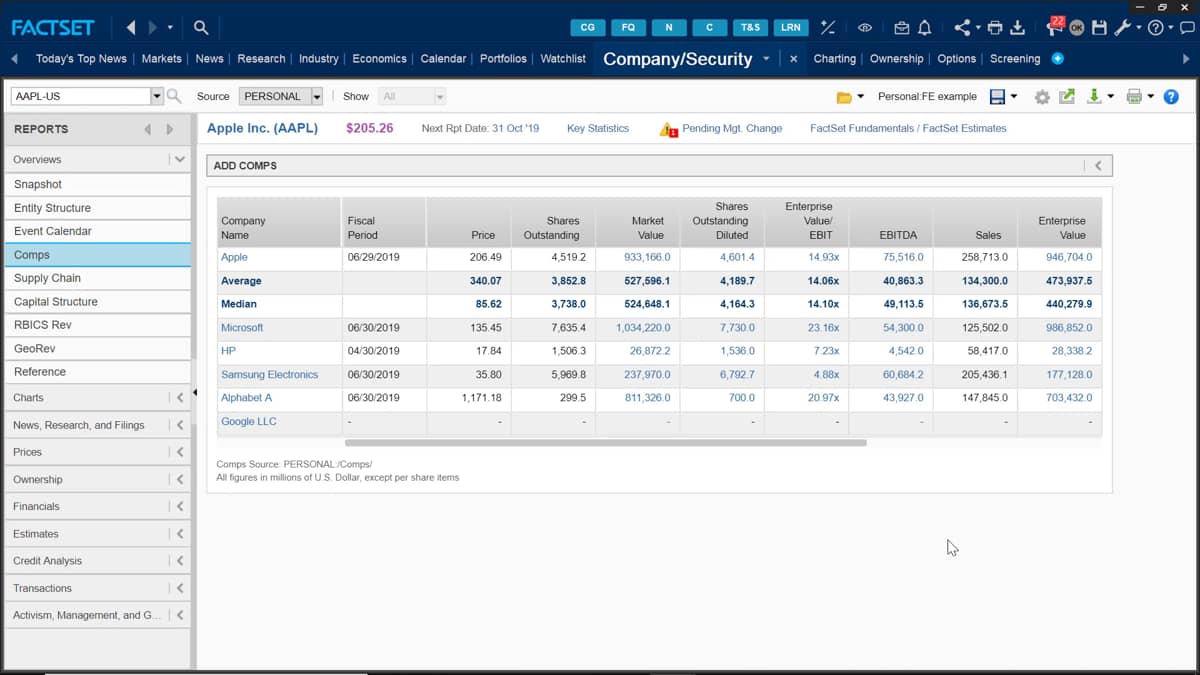
Now you have your customer report made up with all the companies and data items of your choosing, you can save and download the report.
To save your new report, make your way over to the report name menu, and click save as name and reports to your choosing or save over an existing reports by clicking the report from the menu and saving over, just click the save button and your report will be added to your FactSet workstation.
If you wish to save your competitor's list, which you might have made to a direction on FactSet, then go to the dropdown menu here.
Click save, and then either save comps to personal or save comps to client.
Your list will then be saved into your workstation and you can use it with other applications or a new target company.
With the metrics. If we go to a new company page, we can load this save report by clicking the open button and finding the reports either under personal or client, depending on where you saved it to.
Some further options we have are to print the reports or download it.
The print option is found under this icon here.
You can fit the reports onto one page by going into the print options and clicking shrink to one page.
Make sure to tick that box if you want that option.
Finally, to export the report, head over to the download report icon found under this icon, and in the following dialogue box will open the dropdown menu.
Here will select the type of file you want to download.
You can choose to have the table on a new Excel spreadsheet, active spreadsheet spreadsheet file, or a PDF document.
In this example, I want to download the table into a new Excel spreadsheet, so I'm gonna keep the default new spreadsheet.
The next dropdown menu is to decide the data output and you can select to have the data just as values or equals FDS for cell referencing.
This means that all the data will be downloaded with the FactSet syntax code and the saved formulas.
I want this option, so I'm going to press that.
You now only need to press okay, and the reports will be downloaded into Excel.
Once the report is downloaded, I can select a cell and from here you can see the formula is displayed up in the formula box.
This lets me know where the DI data item has been extracted from now the table is in the new Excel spreadsheet.
I am much more scoped to make amendments to the data and the facts at sidebar will allow me to change the report date, edit the company, and any further metrics.

 Factset-keyboard-shortcuts-for-Excel

