The idea screening tool can be used to screen for companies based on different criteria and even used to create comps lists.
You can use FactSet's pre-made lists or customize your own by adding or removing screen criteria.
For this, I need to start at my idea screening tab and select all companies.
This will start the screen.
The report is very similar to m and a deals, but FactSet has provided a different set of default screening items.
This report looks pretty good as it is, but I can remove any screening criteria by clicking the small X up at the top or add more by going to the left panel and dragging the items in from the list.
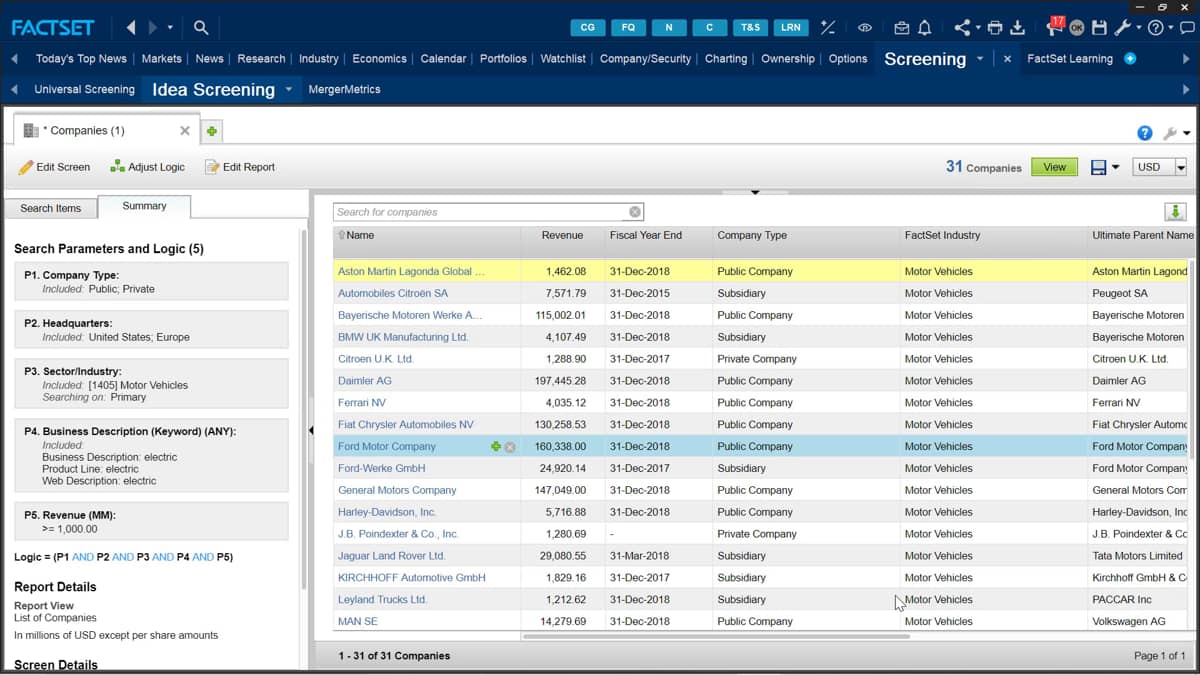
I want to create a custom comps list for electric motor vehicle manufacturers, all headquartered in the United States and Europe.
So it's quite specific what I'm looking for, but let's use a screening tool to illustrate how I can build a list of data from it.
So to begin with the company type, and at the moment, both private and public are selected by clicking the plus sign underneath private, I have further screening options available.
Do I want to include subsidiaries? Do I only want private companies? But now I'm happy to leave this list. As it is.
The headquarters indicates the location of the main headquarters of the company.
I want to include companies based in the United States as well as Europe.
So I can search for these and add these in with the search bar.
The sector or industry will be motor vehicle, and I can add electric into the business description to filter results showing electric car manufacturers.
At the moment, the screen results will display a list of screen companies.
Let's say I want to filter the list and make the screen companies more comparable.
How do I do this? I don't want to include a large company which generates something like 10 times the revenue as another as it's not very comparable.
Well, one way I can do this is to add a metric to my report, either by searching with the toolbar or adding it in directly from the topics and subtopics list.
For example, I may want to include a minimum revenues figure or market capitalization.
Once I'm happy with everything in the list.
At the top right indicates the number of results I have.
Based on the criteria selected.
I can view all the companies by clicking the view button up at the top of the page.
I can save my screen list and add it to a portfolio by going to save and clicking save identifier, save screen results identifier.
But how can I create a comps list from these results? Well, a great bonus of creating a comps list is the ability to use the list of companies in Any other applications within the workstation.
So to create a comps list, I only need to click the small plus icon.
And as you can see, my comps list is being created below.
If I use the search bar, I can locate a specific company that I might want to include rather than scrolling through all the data sets.
If the company is not found in the report, then I can click the why hyperlink, which will explain what criteria is filtered out.
I can still choose to manually override the screening by clicking add, and just include the company in my list.
Once complete, I just need to go back to the save icon and click save identifier.
And this time the save Custom comps identifier will now be available because a list has been created.
Now, when I next load an application, I can click the identifier look up, which is displayed as a small magnifying glass to find my comps list.

 Factset-keyboard-shortcuts-for-Excel

