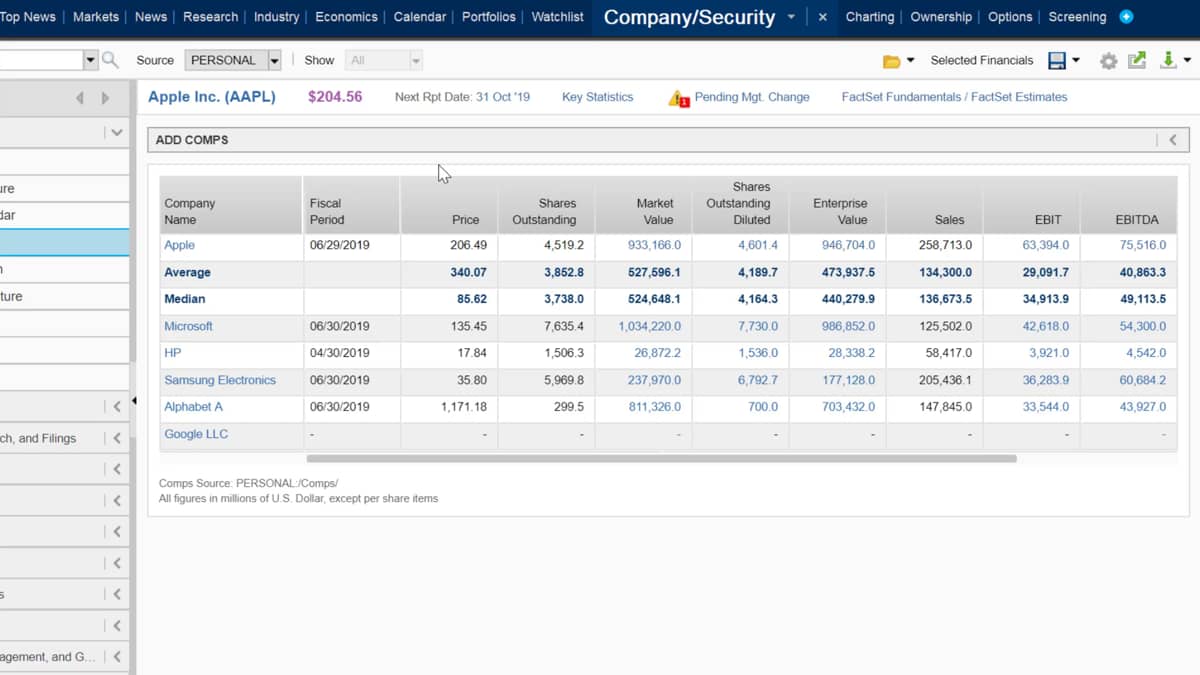
From the comps report page, you have the option to edit the default reports and add or remove companies of your choosing.
You might want to add a company which isn't already displayed, or remove a company, which is included just above the reports, you will find that add comps button.
Click on. This allows you to use the type of head search to look up and add companies straight into your report.
On the right of the search bar is the identifier lookup.
Click in. This will bring up the following window.
You can use this to make a more defined search for companies and add filters.
You may wish to also remove any companies displayed on the report.
You can do this by simply hovering over the company name in the report and then clicking the small X symbol to remove the company.
Below the search box is the option to find companies defined by one or more limitations such as the industry or geography.
You can choose to only search for companies in the same business line or industry by selecting in targets, and then the sub criteria of your choice to make further restrictions on your search, specify the financial characteristics In the closest buy dropdown menu.
You can find the most relevant financial characteristics such as sales ev, and many more to decide on your top comps.
Lastly, make a choice by selecting the target company's location by ticking the in targets country box.
Tick that include ADRs box for companies that are American depository receipts.

 Factset-keyboard-shortcuts-for-Excel

