Skip to content
Felix
  • Topics
    • My List
    • Felix Guide
    • Asset Management
    • Coding and Data Analysis
      • AI
      • Data Analysis and Visualization
      • Financial Data Tools
      • Python
      • SQL
    • Credit
      • Credit Analysis
      • Restructuring
    • Financial Literacy Essentials
      • Financial Data Tools
      • Financial Math
      • Foundations of Accounting
    • Industry Specific
      • Banks
      • Chemicals
      • Consumer
      • ESG
      • Industrials
      • Insurance
      • Oil and Gas
      • Pharmaceuticals
      • Project Finance
      • Real Estate
      • Renewable Energy
      • Technology
      • Telecoms
    • Introductory Courses
    • Investment Banking
      • Accounting
      • Financial Modeling
      • M&A and Divestitures
      • Private Debt
      • Private Equity
      • Valuation
      • Venture Capital
    • Markets
      • Economics
      • Equity Markets and Derivatives
      • Fixed Income and Derivatives
      • Introduction to Markets
      • Options and Structured Products
      • Other Capital Markets
      • Securities Services
    • Microsoft Office
      • Excel
      • PowerPoint
      • Word & Outlook
    • Professional Skills
      • Career Development
      • Expert Interviews
      • Interview Skills
    • Risk Management
    • Transaction Banking
    • Felix Live
  • Pathways
    • Investment Banking
    • Asset Management
    • Equity Research
    • Sales and Trading
    • Commercial Banking
    • Engineering
    • Operations
    • Private Equity
    • Credit Analysis
    • Restructuring
    • Venture Capital
    • CFA Institute
  • Certified Courses
  • Ask An Instructor
  • Support
  • Log in
  • Topics
    • My List
    • Felix Guide
    • Asset Management
    • Coding and Data Analysis
      • AI
      • Data Analysis and Visualization
      • Financial Data Tools
      • Python
      • SQL
    • Credit
      • Credit Analysis
      • Restructuring
    • Financial Literacy Essentials
      • Financial Data Tools
      • Financial Math
      • Foundations of Accounting
    • Industry Specific
      • Banks
      • Chemicals
      • Consumer
      • ESG
      • Industrials
      • Insurance
      • Oil and Gas
      • Pharmaceuticals
      • Project Finance
      • Real Estate
      • Renewable Energy
      • Technology
      • Telecoms
    • Introductory Courses
    • Investment Banking
      • Accounting
      • Financial Modeling
      • M&A and Divestitures
      • Private Debt
      • Private Equity
      • Valuation
      • Venture Capital
    • Markets
      • Economics
      • Equity Markets and Derivatives
      • Fixed Income and Derivatives
      • Introduction to Markets
      • Options and Structured Products
      • Other Capital Markets
      • Securities Services
    • Microsoft Office
      • Excel
      • PowerPoint
      • Word & Outlook
    • Professional Skills
      • Career Development
      • Expert Interviews
      • Interview Skills
    • Risk Management
    • Transaction Banking
    • Felix Live
  • Pathways
    • Investment Banking
    • Asset Management
    • Equity Research
    • Sales and Trading
    • Commercial Banking
    • Engineering
    • Operations
    • Private Equity
    • Credit Analysis
    • Restructuring
    • Venture Capital
    • CFA Institute
  • Certified Courses
Felix
  • Data
    • Company Analytics
    • My Filing Annotations
    • Market & Industry Data
    • United States
    • Relative Valuation
    • Discount Rate
    • Building Forecasts
    • Capital Structure Analysis
    • Europe
    • Relative Valuation
    • Discount Rate
    • Building Forecasts
    • Capital Structure Analysis
  • Models
  • Account
    • Edit Profile
    • Manage Account
    • My List
    • Restart Homepage Tour
    • Restart Company Analytics Tour
    • Restart Filings Tour
  • Log in
  • Ask An Instructor
    • Email Our Experts
    • Felix User Guide
    • Contact Support

Rates Markets and Products (FICC)

Understand the main characteristics of bonds and the different types traded in the financial markets.

Unlock Your Certificate   
 
0% Complete

15 Lessons (38m)

Show lesson playlist
  • Description & Objectives

  • 1. Bond Characteristics

    03:25
  • 2. Coupon Types

    02:27
  • 3. Coupon Types Workout

    01:12
  • 4. Bond Pricing

    02:59
  • 5. Bond Pricing Workout

    01:08
  • 6. Bond Yields

    02:51
  • 7. Bond Yields Workout

    03:03
  • 8. Government Bonds - Introduction

    03:37
  • 9. US Government Bonds

    03:29
  • 10. US Government Bonds - STRIPS Workout

    03:08
  • 11. US Government Bonds Continued

    01:41
  • 12. Government Bonds - TIPS Workout

    01:50
  • 13. Introduction to Yield Curves

    04:17
  • 14. Non-US Government Bond Markets

    03:44
  • 15. Rates Markets and Products Tryout

Bond Yields Workout

  • Notes
  • Questions
  • Transcript
  • 03:03

Bond Yields Workout

Downloads

Intro-to-Bonds-Bond-Yields-Workout-EmptyIntro-to-Bonds-Bond-Yields-Workout-Full

Glossary

Bonds
Back to top
Financial Edge Training

© Financial Edge Training 2025

Topics
Introduction to Finance Accounting Financial Modeling Valuation M&A and Divestitures Private Equity
Venture Capital Project Finance Credit Analysis Transaction Banking Restructuring Capital Markets
Asset Management Risk Management Economics Data Science and System
Request New Content
System Account User Guide Privacy Policy Terms & Conditions Log in
Transcript

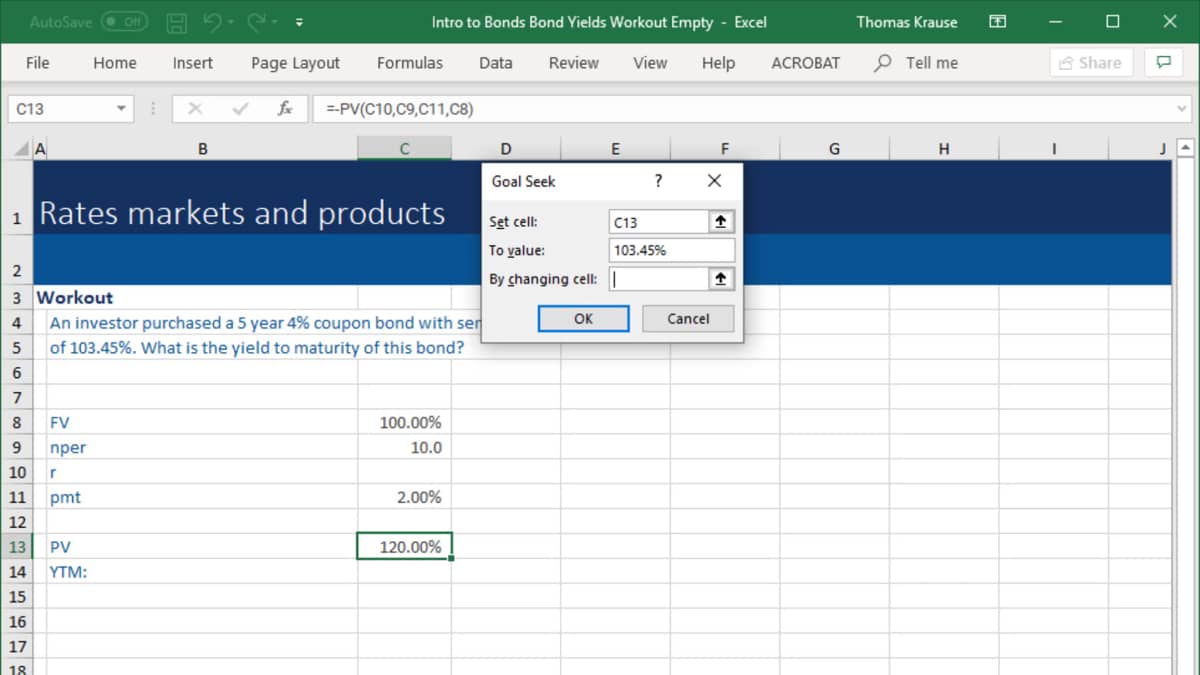
In this workout, we've been asked to calculate the yield to maturity of a coupon bond. And as we've learned, it's not possible to calculate the yield to maturity directly for bonds with multiple coupon payments but instead, we have to use iteration. In other words, we have to change the desired rate until the calculated bond price matches the given bond price. Unfortunately, we won't have to do the iteration by hand but we can take advantage of Excel's Goal Seek function here. But first things first, let's build the simplified bond pricing tool using the PV function. And the face value, again has to be set at 100% as we want to calculate the bond price in percentage terms. Number of periods this time is 10, as we are looking at a five-year bond, but with semi-annual coupon payments. So there are 10 payments in total. The desired rate, we can leave blank in this case as we're effectively looking for it. And the payment is linked to the 4% coupon rate. But we have to remember to divide the coupon rate by two as we need the payment per period. And a period in this particular case is half a year. And now let's apply the PV function as we've done before. So negative PV. Then we need the desired rate, which is blank. The number of periods is 10, the payment per period and of course, the face value and the bond price in this case is calculated at 120%, which makes sense because if you leave the cell of the desired rate empty, Excel automatically interprets this as a desired rate of 0%.

The next step is to calculate the yield to maturity that gives a bond price of 103.45%. And as mentioned earlier, we're going to use goal seek for that. So let's select Data, What-If Analysis and Goal Seek. And this window should pop up. And what we want Excel to do is to set cell C13, which contains the bond price to a value of 103.45%, which is a bond price that have been given to us in this workout. And the whole thing should be achieved by changing cell C10, which is the cell that contains the desired rate. Hit OK and Excel iterates the desired rate for us. As a side note, if the goal seek result does only get close to 103.45% when you do this, you might have to increase the number of iterations in Excel. And this could be done under File, Options, Formulas. So we calculated the desired rate to be 1.62%. Now, to get from the desired rate to the yield to maturity, there's only one step left. And that is to multiply the desired rate by two as the desired rate is given per period and yields are expressed as per annum rates. And there we go. The yield to maturity for this particular bond should be 3.25%.

Content Requests and Questions

You are trying to access premium learning content.

Discover our full catalogue and purchase a course Access all courses with our premium plans or log in to your account
Help

You need an account to contact support.

Create a free account or log in to an existing one

Sorry, you don't have access to that yet!

You are trying to access premium learning content.

Discover our full catalogue and purchase a course Access all courses with our premium plans or log in to your account

You have reached the limit of annotations (10) under our premium subscription. Upgrade to unlock unlimited annotations.

Find out more about our premium plan

You are trying to access content that requires a free account. Sign up or login in seconds!

Create a free account or log in to an existing one

You are trying to access content that requires a premium plan.

Find out more about our premium plan or log in to your account

Only US listed companies are available under our Free and Boost plans. Upgrade to Pro to access over 7,000 global companies across the US, UK, Canada, France, Italy, Germany, Hong Kong and more.

Find out more about our premium plan or log in to your account

A pro account is required for the Excel Add In

Find out more about our premium plan

Congratulations on completing

This field is hidden when viewing the form
Name(Required)
This field is hidden when viewing the form
Rate this course out of 5, where 5 is excellent and 1 is terrible.
Were the stated learning objectives met?(Required)
Were the stated prerequisite requirements appropriate and sufficient?(Required)
Were the program materials, including the qualified assessment, relevant and did they contribute to the achievement of the learning objectives?(Required)
Was the time allotted to the learning activity appropriate?(Required)
Are you happy for us to use your feedback and details in future marketing?(Required)

Thank you for already submitting feedback for this course.

CPE

What is CPE?

CPE stands for Continuing Professional Education, by completing learning activities you earn CPE credits to retain your professional credentials. CPE is required for Certified Public Accountants (CPAs). Financial Edge Training is registered with the National Association of State Boards of Accountancy (NASBA) as a sponsor of continuing professional education on the National Registry of CPE Sponsors.

What are CPE credits?

For self study programs, 1 CPE credit is awarded for every 50 minutes of elearning content, this includes videos, workouts, tryouts, and exams.

CPE Exams

You must complete the CPE exam within 1 year of accessing a related playlist or course to earn CPE credits. To see how long you have left to complete a CPE exam, hover over the locked CPE credits button.

What if I'm not collecting CPE credits?

CPE exams do not count towards your FE certification. You do not need to complete the CPE exam if you are not collecting CPE credits, but you might find it useful for your own revision.


Further Help
  • Felix How to Guide walks you through the key functions and tools of the learning platform.
  • Playlists & Tryouts: Playlists are a collection of videos that teach you a specific skill and are tested with a tryout at the end. A tryout is a quiz that tests your knowledge and understanding of what you have just learned.
  • Exam: If you are collecting CPE points you must pass the relevant CPE exam within 1 year to receive credits.
  • Glossary: A glossary can be found below each video and provides definitions and explanations for terms and concepts. They are organized alphabetically to make it easy for you to find the term you need.
  • Search function: Use the Felix search function on the homepage to find content related to what you want to learn. Find related video content, lessons, and questions people have asked on the topic.
  • Closed Captions & Transcript: Closed captions and transcripts are available on videos. The video transcript can be found next to the closed captions in the video player. The transcript feature allows you to read the transcript of the video and search for key terms within the transcript.
  • Questions: If you have questions about the course content, you will find a section called Ask a Question underneath each video where you can submit questions to our expert instructor team.
