When loading the charts tab, you'll be displayed with this page giving you a range of options of different charts.
These include price charts enabling you to analyze price performance of different securities and assets.
Generic time series to create time series data charts from scratch, bond spread review and analyze the spread of data between yields and benchmarks, yield curves, price impacts, and economic analysis.
Let's say we want to create a government bond curve.
How do we go about doing this? First, we would select the yield curve option.
No chart will be displayed until we have inputted our identifier.
We'll use the United Kingdom as an example.
We only need to make our way up to the identifier search box.
For more defined searches, we can use the magnifying glass here.
This lets us incorporate filters into our search.
Our government bond curve is now displayed.
The graph displays the yield against the time to maturity of the bond.
Hovering over any point in the graph will also display the axis coordinates.
If I want to create more charts, I don't have to close the current one here.
I only need to click the plus icon at the bottom, I can rename a tab by double clicking to be displayed.
With this box renaming the charts will require me to save it first to my workstation.
I now want to show an example for creating a corporate bond curve.
For this, I open a new tab and then select time series curve.
FactSet then already has preset charts I can make use of.
If I want to create a yield curve for the company Apple, I need to go to the time series charts.
The pre-made charts provided by FactSet are displayed under the plot options list.
Here I can then find yield curve searching for Apple would then display all the securities available in the dropdown list.
Let's now move on to creating a volume weighted average price chart for a company.
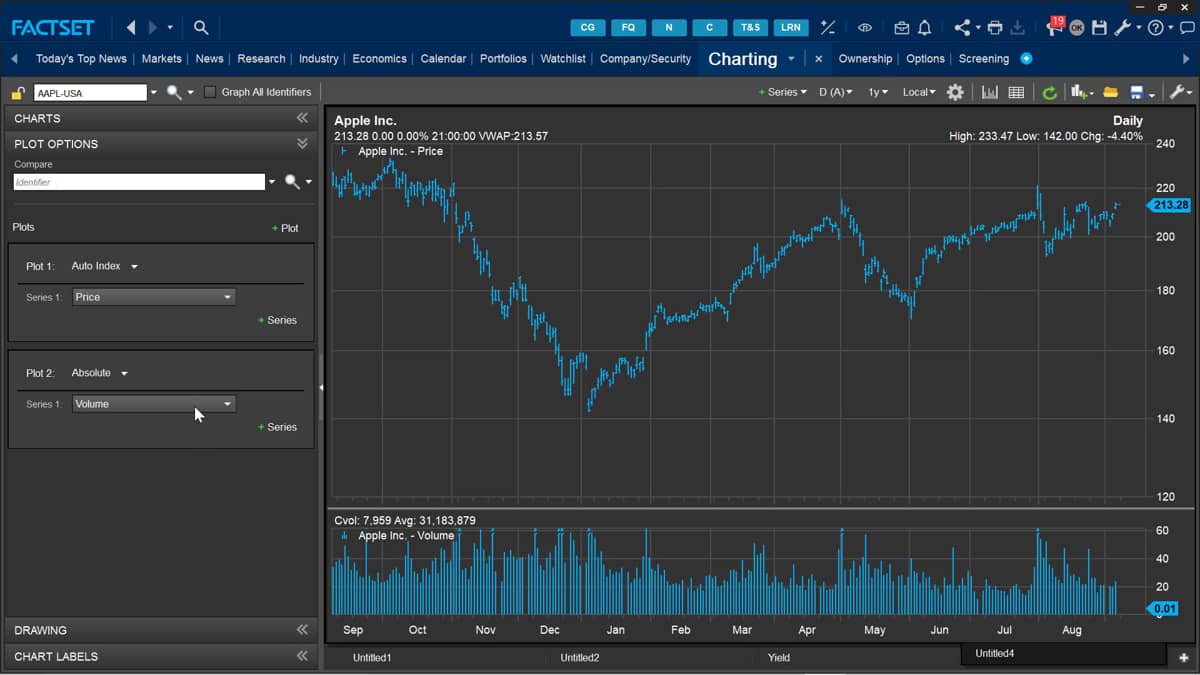
I can start this by making my way over to the new tab and this time selecting price chart option.
Let's use Apple as our example.
The charts will automatically load the last search identifier into the new charts option.
If I did want to load a new company, then I just need to search it with the box again.
Up here, the chart displayed is showing the share price.
If I want to add the volume weighted average price, I can make my way up to the plot option and either change the series or add a new one to feature.
As a comparison, I can search directly for a series with the search bar using the abbreviation VWAP.
This search bar holds many metrics including profitability, margins, valuation multiples, growth metrics, currencies, and more.
I can change series to display as a line rather than high low.
By right clicking on the graph, I can go to draw style and then line.
My volume weighted average price chart is now complete.

 Factset-keyboard-shortcuts-for-Excel

