Once you've created a chart in your FactSet workstation, you have a number of options to extract the data into an Excel spreadsheet.
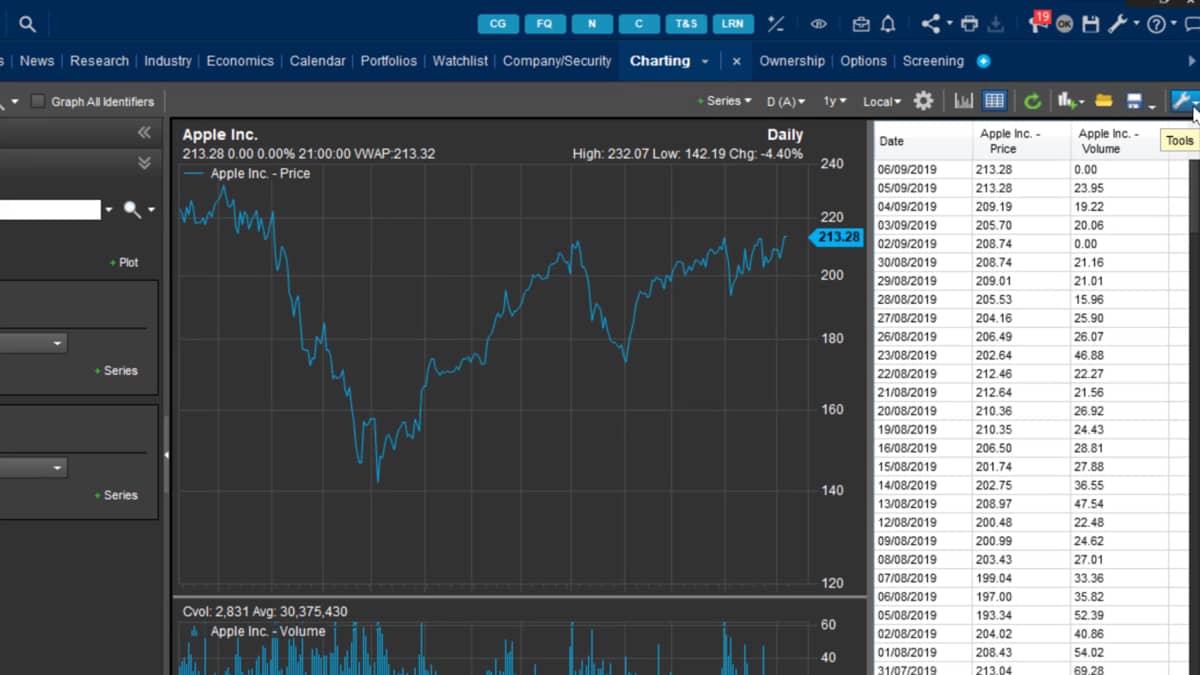
I'm currently on the charting tab in my workstation and I've created a simple price graph for the company Apple.
Now, this chart looks great here, but I want to bring the data into Excel, and that way I can present it.
All my options can be found at the top right under the tool icon here.
This will display a list of the following options.
My first option is to copy the graph as an active chart, but what does this mean? Well, let's copy the graph and paste it into a new Excel spreadsheet.
As you can see, my chart is now displayed.
However, this is not presenting a static image as it looks like here, and I can actually refresh the Excel page and it will bring in the most recent data.
This means that once you've created a chart, you only need to refresh by clicking the icon up here, and you don't need to worry about creating a new chart every time for a different period.
This feature is linked with the Excel fax set, add-in active graph, and this is found in the toolbar up here.
This will allow me to create active charts within Excel from scratch.
The add-in does not include as much detail as the charting tab, but I do have a number of options and I can create quite a few charts or within Excel.
If I go back to my charts within FactSet, you may be asking, but hang on, how do I see the raw data, which makes up the chart? If I go at the top here on my toolbar, I can click the show reports icon found here.
Doing this will display a table showing all the data plots for chart.
This brings me to the next two options for extracting the chart data.
If I go back up to the tools icon in the command bar, I have the option to download the raw data into Excel and download equals FDS codes to Excel.
But what's the difference? The download raw data will only extract the information as numerical values.
This is great if I only want to report the charts for one period.
However, that equals FDS code option will report the data with the underlying FactSet formulas.
If I select this option and download it to a single spreadsheet, I now have the same option as my active graph and I can use the refresh button found at the top in the Faxer Excel, add-in.
The data will automatically update into my spreadsheet.
Clicking on a data item will also display the formula in the Excel bar up here.

 Factset-keyboard-shortcuts-for-Excel

