Let's look at how to create a portfolio of companies.
Once I have my FactSet application set up, I need to load the quick portfolio application, and I have two ways to do this.
I can either search for the application with the FactSet search bar up at the top, or I can use the shortcuts found at the top of my workstation identified by this small suitcase icon.
The quick portfolio screen will display, and one of the first things you'll notice is this grid system very similar to an Excel spreadsheet.
Well, like an Excel spreadsheet, I can type the company tickers straight into each row under the symbol column, or if I have already an Excel spreadsheet open containing a list of company symbols.
I only need to copy and paste this list straight into the portfolio application.
Just above is the option to display security name.
If I tick this, this will input a new column to the left with the name of the security.
In this example, it'll be the company names.
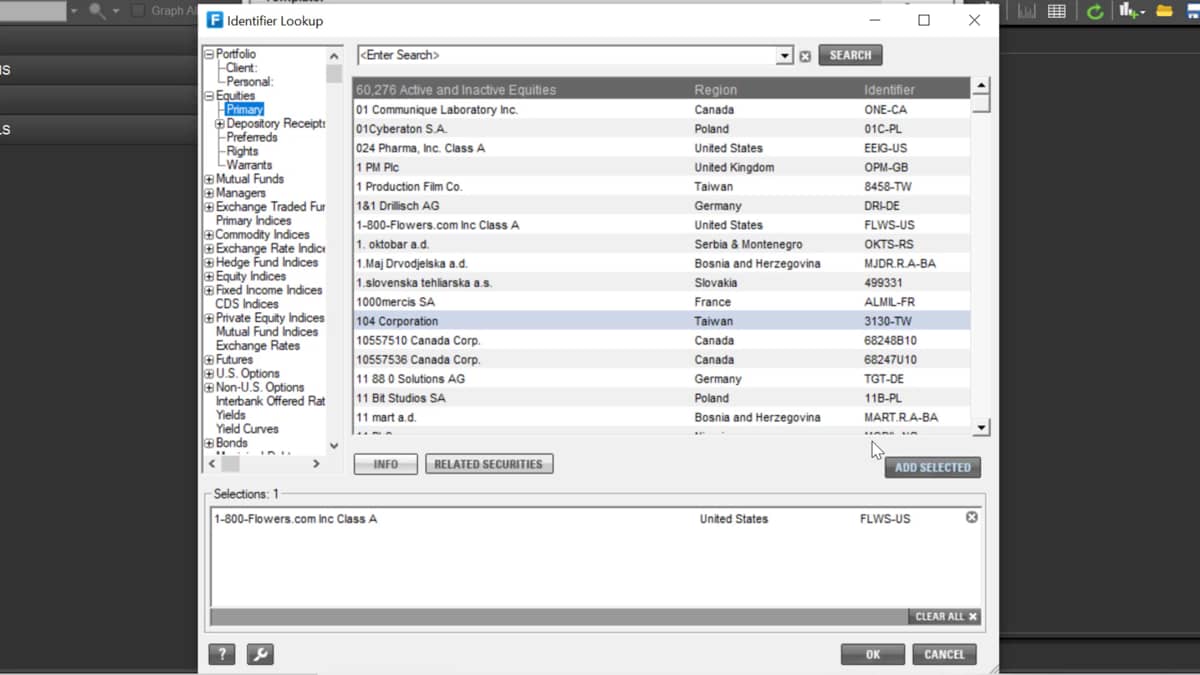
If you don't know the ticker for a company, then using the identifier lookup, we'll allow you to search for the security by name.
You can add each as many as you like, and then click the okay button to bring them into your portfolio.
On the right are some further portfolio options.
You can quickly remove all data entries with the clear data button or remove a selected security by selecting the cell and clicking the remove button.
Holding the control key will allow you to select multiple items at once and then remove them.
I now only need to click save once I am happy with my portfolio and decide where I want to save it and the name of the new file.
The portfolio is now ready to be brought in with many other FactSet applications as templates of data.

 Factset-keyboard-shortcuts-for-Excel

