When a portfolio is created, this has saved your workstation and can be used as a template in the filings tab, news charting, and many more applications.
Let's now look at how we build a price chart from a portfolio of companies lists we have previously built.
First, we need to be in the charting tab within FactSet and select the kind of charts we want as I want a price chart.
I have selected this in the chart options at the beginning.
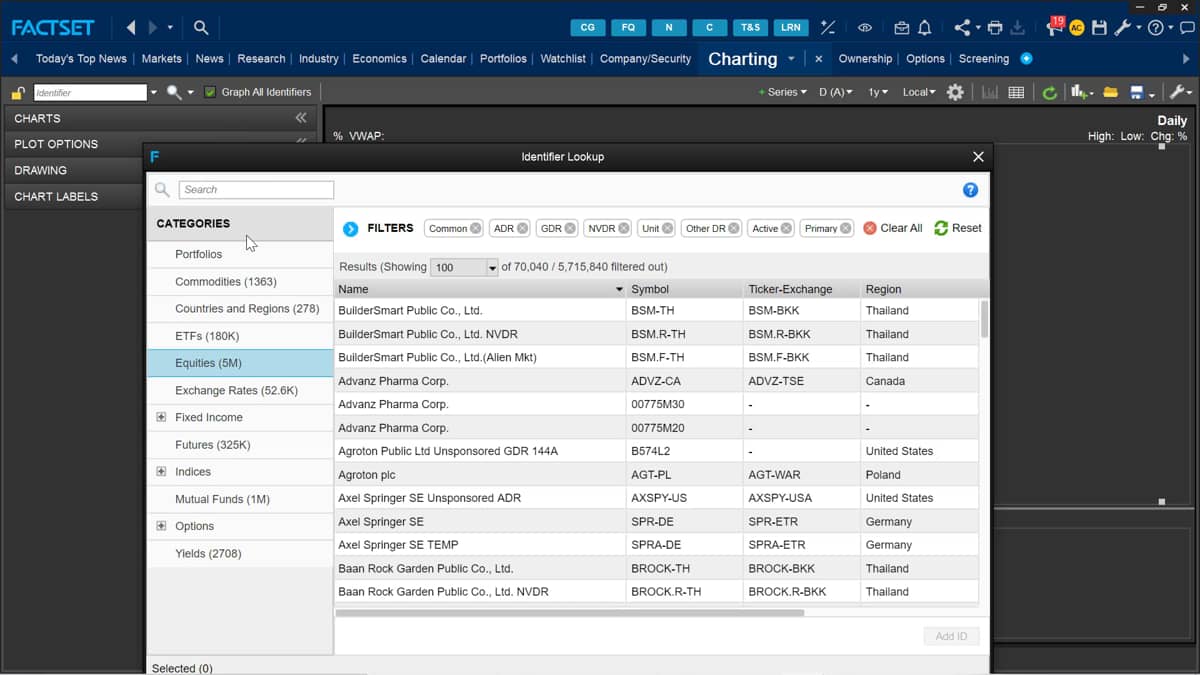
Now I need to select an identifier, which is the security I want to load the data for.
I can use the search bar or select the identifier lookup tool identified by the small magnifying glass on the right.
This option allows me to search for any safe portfolios in my workstation, as well as individual securities.
I just need to simply locate by list under the portfolio tab and then press okay to bring it in.
Whenever you are plotting data for more than one identifier, you need to select the graph or identifiers box on the right here.
If I clear the data from the chart, I can do this by selecting the dropdown menu here and hitting clear all, I now want to bring in the same portfolio of companies, but this time as a composite, I repeat the same steps as before.
I need to select the identify a lookup tool and find my portfolio.
Then just before selecting the okay button, I can select the ad as a composite, and this will bring in the portfolio as a composite line.
My graph looks good, but what if I want to understand the price change more comparatively by indexing the data? I can do this by making my way over to the plot options and then selecting which series I want to index.
In this plot, I have only one series of data being the share price, and I only need to select the plot mode and be displayed with the following list.
Now I can select indexed and choose the index benchmark for my data series.
I need to go to the plots options tab and enter the index value to 100 as this is the value I want to index it to.
My chart will now update and make values which may be vastly different, much more comparable.
Some further plot options can allow me to add other composites to compare my portfolio with the relative to option is also found under plot options, and I can compare the data relative to any other security or composite provided by FactSet.

 Factset-keyboard-shortcuts-for-Excel

