Claude - Pitch Book Creation and Presentation Design

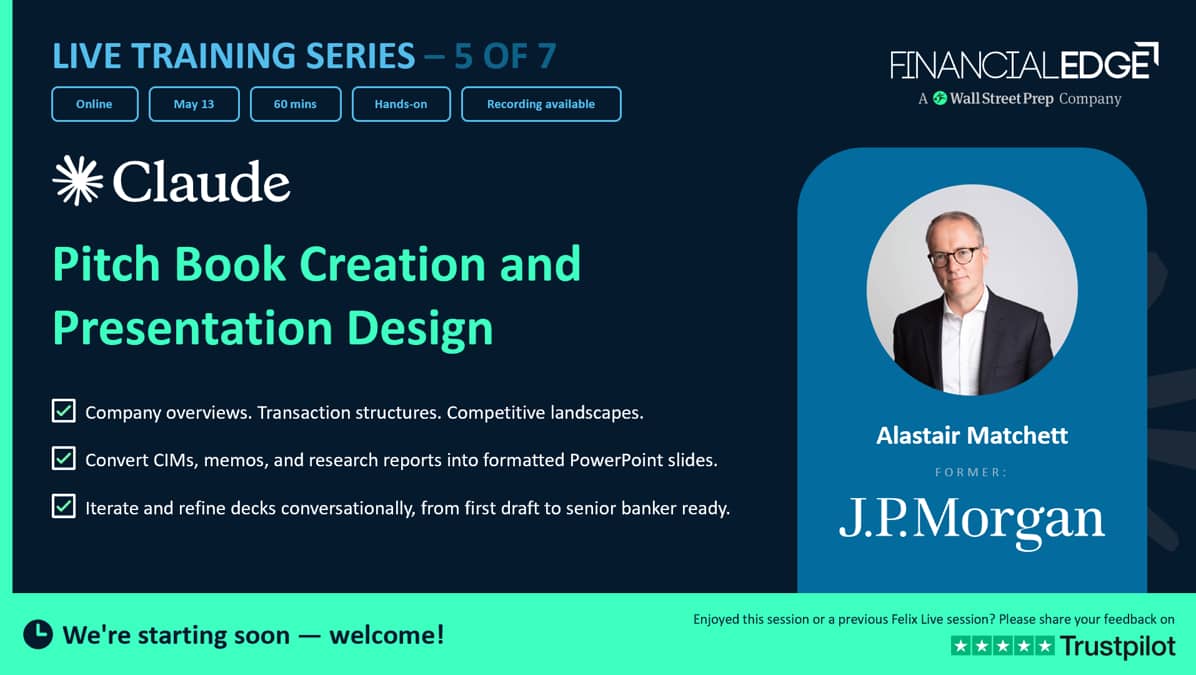
- 00:00
Anthropic’s Claude now integrates directly with PowerPoint, enabling analysts to generate polished presentation decks from prompts, documents, and data. Building on the due diligence and research skills from Week 3, this session focuses on turning analysis into client-ready pitch books and presentations.
 Claude for PowerPoint Webinar

Transcript
Welcome to this session on Claude and PowerPoint.
Claude has improved enormously over the last three months. And in particular, they have built some add-ins to the Microsoft Office suite.
So there's an add-in for Word, there's an add-in for PowerPoint, and there's an add-in for Excel. The add-ins, though, are more like a beta version. So I found, particularly the PowerPoint add-in, a little bit clunky from what I'm used to. So just kind of caution that.
So as a consequence, what we're going to do today is we're going to go through building the pitch book using Claude Desktop, and then once we've done that kind of first cut, then we'll open it in PowerPoint, and then we will do some pinpoint adjustments. So the add-in to PowerPoint is very good for pinpoint adjustments. It's less good than if you're going to build a whole deck.
So my advice to you is that if you're going to use the Claude add-in for PowerPoint, do it to adjust rather than build the deck from scratch.
Okay, let's get started. I'm going to run through some slides initially, and then we are going to do a live demo.
Okay, let's get started. So, what we'll cover today is building pitch books from prompts. So what that means is we will...
Sorry, I'm just adjusting my camera.
We will go through in how to build it, and it's really quite important because when you're prompting to build a pitch book, what you don't want to do is say, "Okay, build this whole deck." You need to actually do it in steps.
And there's a number of stages that we recommend you do so you can kind of set the scene, create a spine, a structure, before you even start doing any slides. The benefit of this is it's way, way more efficient to kind of get the structure right first before you actually go into building the deck. So don't do that too quickly.
Otherwise, A, you'll waste a lot of time because you have to re-prompt the whole deck, and B, and this is becoming a bigger issue, is you'll use up tokens. And the models, the LLMs, are moving from a flat fee structure to a charge by token usage. And that's actually quite a radical shift because, for example, me, I'm constantly getting messages saying, "You've run out of your weekly token limit." And I go to IT, who can expand it, and so it's likely to get more and more expensive.
So now you need to start thinking about not just what the good prompt is, but which version of your model it's using and doing things in a way that you will be efficient with your token usage.
So, we'll talk about document to deck conversion as well, and then just the kind of transaction and process slides, the competitive landscape slides, the investment thesis, and then, as I mentioned earlier, doc editing, deck editing, and reformatting.
And one of the things is this process will be iterative, okay? So you will kind of refine those workflows.
So the idea behind this whole session is we want to kind of build this into a workflow for you.
So there is this add-in to PowerPoint, okay, and it sits just on the right-hand side.
Let me just show you that because I have got one open, and I think that will be helpful for you to see. So this is as kind of a template deck that we're going to use.
And if I go to the Home key, you can see that I've got a little Claude button there, and it opens a little window on the right-hand side.
And down at the bottom, you can change the model you're using.
So just be cautious here because Opus 4.7 is fantastic, but it is literally greedy as anything when it comes to token usage.
So just be aware of that. And then you can add files or photos, and there's a little Accept All edits because it sometimes prompts you for things where it's getting the data as well. And then there's some skills, and we'll talk about creating some skills, because when you are creating charts, particularly in a pitch deck, often it's actually the first cut of a football field tends to be really terrible.
And so the first time you do it, you have to keep on editing it and keep on prompting it to edit it. And then once you've kind of got something that's right, then you can select it and then tell it to create a skill.
So whenever you ask it to, for example, do a football field chart, it will do that automatically. And that's actually really time efficient to do that. So we're going to go through kind of three main sections. We're going to build the deck, generating from prompts.
We'll do pinpoint edits, select an object on the slide, and then ask Claude to simplify the text, change the coloring, things like that.
Then the third thing, which is important, is that Claude can carry one conversation across PowerPoint, Excel, and Word.
So this means that if you've been working on an Excel model, you can then also tell it, "Hey, take the open spreadsheet and pull the summary numbers from that into this deck." And that means you don't need to kind of link it. You can ask it to link it as well, but there is cross connection between the key Microsoft Office tools. And that's actually a real boon there.
Okay. So, one of the things that you need to do is you need to install the add-in because it's not done it generically. So as long as you have access to Claude, you can install it.
So you need to have the Claude desktop version for this to work, okay? So you need the Claude desktop, and then go to Home, Add-ins, and then search by Claude by Anthropic.
Or if you're in a firm where you have administrators controlling the setup, thenYou'll need to do that, and then you need to sign in using the credentials that you have, or sometimes that is automatically done.
And then I personally would start it in Claude, the desktop first, build the deck, and then open it in PowerPoint. But you still need to install it into PowerPoint.
There's no free version of this. You've got to pay for it.
And the two main models, Opus and Sonnet.
Sonnet is quick and is much more efficient in terms of tokens usage. Opus is like the full monty and will just suck your token bank dry when you do that.
Bear in mind that this is a beta research preview, so just be aware. That's why the add-ins to PowerPoint, Excel, and Word don't tend to be as strong as just doing it straight in the pitch in the desktop version. So I'd normally do that first, then pull it into Word, Excel, or PowerPoint and then adjust it. In fact, Excel does work pretty well, actually. In fact, I'd probably say that just do it in Word and PowerPoint if you're using those files.
There's another thing that I'm going to show you today.
If I just jump to my Claude version, my desktop here, you can see this on the front screen. This is the main desktop.
You could use Cowork if you want, but I'm actually going to use the chat feature. The reason I want to use chat is that you can only share projects in chat. You can't share projects in Cowork. And with pitch books, you probably want somebody else to see them and may be able to prompt them. So I'm going to do it in chat.
The second thing is that if you go down to customize, you can see that you have skills. So this is where I've built skills. So for example, I created a skill on building a football field chart because there was so much garbage when it first came out there, when it first presented it.
So what I did is I adjusted it, prompted it, got it right to what I liked, and then asked Claude to create a skill.
So this is a skill that is created about creating a football field chart.
And this means that when you create another football field, it's just done for you. So you can see here that's pretty useful, and I've got a one page there as well.
But the other thing I'd like to show you is the connectors.
So connectors are where you can connect things to Claude, and there are lots of them. You can see that there's a whole load of things which are not connected here. Some of my friends in our IT department are a bit wary of doing connectors.
But what we have done is that we have connected our Felix data platform into Claude.
Let me just show you the Felix data platform, just so you know what I'm talking about. So I'm just going to shunt this over to the screen. There we go.
So if I log in first, let me just quickly do that. Just do that.
There we go. It's logged in. And if I take Coca-Cola and I open this, so all these filings, all this valuation information, you've got an equity to enterprise value bridge. You've got... Let me zoom in a bit so you can actually see it. Then you've got economic data, you've got a WAC calculator, then you've got comps, and you've got earnings estimates.
All this gets pulled into Claude, which is fabulous. It means we can actually build a deck using market data with the Felix data set. And so we created this connector. So you will need to add the connector, and there are instructions. If you have logged in to the online classroom, which I asked you to do earlier, there are instructions. If you come down to the Claude pitch book creation and design, so the Felix MCP setup PDF, that will explain how to add the Felix connector into Claude. And if you don't have that, you're going to get less good results, and you won't have verifiable data either. So just make sure that you have the MCP set up, fixed up, if you want to recreate what I'm doing today.
And once you've added it in, then you will see the permissions. So you've got share prices there, company snapshot, comps table, equity, enterprise value bridge to equity value, financial model, market time series, XBRL tags, both CLK.
So those are all the tags in the filings, so things like debt, cash, et cetera, that you can pull in.
This is my IT team, in their wisdom, have said it needs approval, which means what it will do, it will prompt me to be able to pull in the data rather than just automatically do that, and they've kind of grayed it out. So, that's why that's there. But I just wanted to show you those connectors, and they're really powerful, these connectors.
So we've done that. So when you prompt, use real live data. So three principles that will change everything for you, okay? Don't just say, "Make a deck," okay? You need to really clarify the audience, the deliverable, and the outcome.
So a vague prompt, you will get just garbage slides.
Secondly, don't just say, "Produce this deck." What you need to do is agree the storyline first.
And what that means is sometimes it's actually setting the scene first in the instructions in the project, because I'm going to create a project to do this, to set the scene with the instructions, and then prompt, "Okay, this is the situation, and..."Build me a spine of the slides you plan to create.
It's much, much more efficient to do that in the prompt rather than build the deck and then start iterating it second.
And then thirdly, when we get into the PowerPoint section, you can click a slide, a number of slides or a chart or some bullet points, and then once you've selected it, then you can prompt it, and it will just apply to what you have selected. Okay? So a weak prompt is build a pitch book for our healthcare deal. Terrible.
Even this, I don't think it's very good.
Build a 12 slide side-by-side pitch on Targetco for a strategic acquirer.
Okay? Use our template. Now, ideally, your team should have already created a skill for the formatting. That's something that I would recommend you do, create a skill for formatting, so you don't need to have to keep prompting that.
Okay. So this is for the first draft pitch book in your firm template.
If you're in the PowerPoint, then you can open the pitch book, your standard template, and then once you have opened it, then you can ask Claude to create a skill with that formatting. Okay? And then you can see we've got a sample prompt here.
One of the things, so skills make things reusable, which is really efficient.
Secondly, you've got to set the audience, it's an MD review versus client kickoff, and change the density and tone if you do that.
And then you can also upload files to do that.
And then what I would then do, rather than get it to build the whole deck, is I would actually get it to build in steps. So you can upload additional files. Okay? You can, for particular things. So for example, if it's a competitive landscape, you could upload an industry report, equity research industry report. Okay? And then what you can do is you can build it step by step. But actually, even before that, I'd probably build a spine, and I think it's worth actually showing you how you'd build a spine.
So then, once you have created the deck or you inherited a deck, then you can review it for typos, which you should always do. But then what you can do is you can, once you go through it, you can do it slide by slide, you can do the whole thing, and then you can accept all, which is sometimes really helpful if it's doing things like typos and spelling.
But often, if you're editing and reformatting, what I've done a lot of times is I've gone into a deck. Let me just open...
Let me go into PowerPoint here. So what you could do is you could say, "I'm going to select these three slides," and I could prompt Claude to simplify them into one slide or expand them as well, and that's really, really great.
So what I mean by this is once you've selected those three slides, you can combine them together. Or if you're in a particular slide, if I click on this one element and I've clicked on that, then I can prompt just that to be changed. So that's the kind of pinpoint edit, and that's really, really efficient. If you want to download a copy of the slides, someone just asked that, this is all in the online classroom. This is the Claude for PowerPoint webinar PDF.
So everything is here. Everything is in the information here. So you just need to log in, and then you can download the files.
Okay. And then, just to reemphasize this, when you have created a slide or a chart, particularly charts in PowerPoint that you like, save it as a skill because then you can reuse it, and I promise you that will save you masses of time.
Secondly, don't start a new conversation if you want to adjust the existing deck. You need to stay within the chat. And this means if you want to share it, you need to share both the project and you need to share the chat.
Okay? Then the instructions can create standing rules, things like brand, voice, and length in there as well.
Okay, so we're going to do a live demo now because I really want to show you how this works. So what we've got here is we have taken a presentation from Lazard, which is on the open internet, on the SaaS industry, so software as a service industry.
And of course, software as a service companies have been massively trashed by the advent of AI. So what we asked Claude to do first is evaluate that file from Lazard, the presentation, and come up with some strategic imperatives or ideas within the industry. And the best idea that they came up with, they ranked them, and they said the best one is Salesforce acquiring HubSpot. So that's the kind of idea behind this.
So that's what we've done already.
So we've asked Claude to come up with an M&A idea based on some collateral, which in this case is a Lazard presentation on the SaaS sector consolidation.
You're going to see the workflow, the rules, the ingestation, and then the spine first, and then batch build, and then pinpoint edits. Okay? So we're going to create a 10-slide draft, and then I'll show you what that looks like.
So-We're going to set up the brief first, attach the sources, and then outline first, and then build and iterate in PowerPoint.
Okay, and then of course, do the human review.
So the first thing we're going to do is we're going to set up the project.
So let me go ahead and do that. Let me flip over to Claude right now. And I'm in the chat version, not Cowork.
If you're on Cowork, you will not be able to share the project.
If you're in chat, you can share the project.
So I'm going to go into Projects, and then I'm going to choose New Project, and then I'm going to call this SaaS and AI version two, because this is the second version. Then this description here, this does not mean anything. This is not going to change how Claude works. This is just for your own purposes.
So I'm just going to say, "A deck built from ideas from the Lazard presentation on," I can't spell today, "on the SaaS and AI." And someone's just put their hand up. If you can just ask me through the chat, that would be really good. So just ask me through the chat because I can see your questions there. So I'm now going to create the project.
I can have it just private to myself or everybody in your firm. So I'm going to choose everybody in my firm, and then I'm going to choose Create Project. And then it goes ahead and creates a project.
Now, I would always set the model first, okay? I'm going to choose Opus. And for this, as it's really thought work, I would always choose Opus.
The material link available now or tomorrow. No, it's available now.
So the materials are available now. You can go ahead and log in and download now.
The memory, this memory, will only show after you've had a few chats. And what that means, it kind of keeps track of what you have prompted before in different chats and keeps kind of context.
So that's why it's kind of blanked out.
Now, the instructions. So for the instructions, if we go back, I'm going to go and select this section, which I need to actually do in my other...
Let me go. Oh, gosh. I'm just going to come out of that. Apologies. And I'm going to set up project.
So these are the instructions, okay? And I'm going to come out of that, and then I'm just going to...
There we go.
I'm going to come into my Claude section there, and I'm going to put it in the instructions.
So I'm going to add that there, and I'm going to save that in there. Okay.
Now, I don't know if I can add tools. Oh, there we go. So we've got these.
So I also can add tools, and I'm going to add Felix in there as well.
So this is the connector. So you could add things like Fact Set, and then I'm going to choose OK. So this means it will know it's got access to Felix, and number two, it has also got... Let me just make sure that's in. Yeah, that's the one there. It's got this profile.
So it's telling you who to act as, a senior TMT banker.
Preparing an internal buyside pitch for a SaaS coverage MD.
I'm actually going to say external.
Kind of like buyside pitch for SaaS coverage. And then sales force hubs got acquisition case. Confident board-ready output.
Use action-oriented slides that state conclusions, not topics.
Keep slide to one idea, supported by three to five crisp bullet points and one clear exhibit. I found this is important, because if you don't do that, you get just tons of bullet points.
And then premium cases, synergies, financing risk, and integration.
State assumptions explicitly in separate facts and judgment.
Cite sources in eight-point Calibri. So that's your footnote at the bottom.
Use only slide master colors. Make charts native and PowerPoint elements, never images. So I'm just going to save instructions there.
Now, I don't think that we can add any...
No, we can't add any filings there.
But I can add some files to the project, which I'm going to do here, and I've got a few.
So I'm going to add... Now, just bear in mind, sometimes you can't add PowerPoints, really frustratingly.
So I'm going to add the Lazard presentation.
I'm going to add the pitch book template, and I'm going to...
I think that's it. Yeah, that's the pitch book template and the Lazard presentation. So let me just see if I can do all files.
Let me just see if I add the PowerPoint.
I seem to remember it's not going to like that. Yeah, so there we go.
Oh, no, it's in use. That's kind of annoying.
Let me just see if I add that, because I know that's in use.
Yeah, see, there we go. PowerPoint's not supported, which is completely counterintuitive, right? Because you'd think given it's in PowerPoint, it could do that. So what you have to do is you've got to create the PDF version first. So I'm just going to include those two and add those, and that means that we'll have context of what we're doing. So we've got those two files there. A little shortcut there. If I open my Windows Explorer, and let me just show you, there's something that you can do that I find really helpful. So if I go to this file, if you right-click this, you can just choose Convert to PDF here. It's way faster.
Or if you have Claude Cowork, you can get Claude Cowork to do it.
You can just point to the folder and say, "Just create PDF copies of everything in the folder." So you can get Claude Cowork to do it, or just right-click the file in Windows Explorer and choose Convert to PDF, because you can't upload it if it's not a PDF.
So we've set up the project, okay? AndWe can share it. So I can share the project, and everyone at Wall Street Prep can share the project. You can invite people by email, or you can copy a link as well. Okay? So that means you can share it.
So let me just share this with a colleague of mine.
There we go, and I'm going to choose that, and then I'll choose Share. Okay? Now, what this means is, is that he can view the project, but he won't be able to see your chats unless you share the chats as well. Just bear that in mind, because that can be problematic.
Okay. So we've set up the project, and then the next thing to do is set the scene. Okay? So we're not even starting prompting the deck here.
We're setting the scene, and I find this is a really good thing. So let me just come out of this because I want to select it. I know that's a bit kind of...
I should probably had that available beforehand.
So I'm just going to go back to Claude now, and I'm going to set the scene. I'm going to paste that in. Okay? And then I'm going to choose and just hit Enter, and then it will go through.
So now my chat has started. So this is just setting the scene. Okay? So what this is not doing, it's not building a deck first. It's just setting the scene, understanding that you've got some presentations.
It's kind of giving this overview of what you want to do.
Okay? And this is kind of sets you up.
Then once this is finished, and sometimes it takes a bit of a while to do this, once this is finished, then what I'm also going to check is that the connectors are working as well. So it's good to do this because if you don't do this, often what happens is you're going to get garbage.
And what you want to avoid at all costs is having to re-prompt an open deck, because it just wastes tokens, and it wastes your time as well. Okay? And so it's loading tools there. So just kind of making sure everything...
There we go. And it's getting a comps table.
So can you see it's actually requested this from Felix? You can see that there. Okay? So this is just getting a kind of context and kind of getting started by setting the scene. Okay? And the thing you need to understand is you want to check that Claude understands, gets the deal, understands who the acquirer and target is.
Those kind of things are pretty important to check.
And also check that the connectors are working.
So it's kind of going through this.
Okay.
And I hope it's not going to build anything, because that would just be a waste of time.
But it's kind of working away, getting the set the scene.
The second prompt is to create the outline of slides. This is not creating the slides.
This is propose a 10-slide outline for the pitch book. Okay? So format, slide number, slide title, action-orientated, not conclusion, because otherwise what happens is you get some academic output.
And then just a one-sentence summary of what the slide will say, and then order the slides for an MD review, reading them top to bottom.
Don't generate the slides yet. I want you to approve the spine first.
Okay, so it's just telling us here it's done a little bit of work, and you can kind of read this through.
What I'm going to do next is, I should be able to share this if I just come out.
Let me just go back into the project.
Let me just see if I can share it down here.
Let me just go down to projects. This is where. There it is, version two.
And then let me just, there we go, just share it here. Oh, no.
It's usually you have to share this again.
I don't know why that's not doing that.
Before it's, have to do it again. But what this has done, this has kind of basically told me what it understands, and it's worth kind of reviewing this first. And then I'm also going to ask it, can you see the Felix connector? Okay. Sometimes that will get confused.
Generally, it's pretty good, and particularly if you have already uploaded that to just some... Yeah, upload live data. There we go.
So it can get the Felix connector, which is really great.
So that's good.
We're good to go. So that's done. So you can get that Felix connector yourself. So next, we're going to get it to do the spine. So let me just come out of that, so I can copy that.
I know that's really dreadful of me having to do that, but you can cope, I'm sure.
And let me go back into Claude, and then I'm going to prompt it to create the spine.
And hopefully, this won't take too long. So let me just read through this.
Propose a 10-slide outline for the pitch book.
Format, slide number, title, action orientated, conclusion, not topic.
One-sentence summary of what the slide will say.
Order the slides for an MD review. I'm actually going to not do all the slides for a pitch to the end client.
It's important to say don't generate the slides yet because we want to approve the spine first. All right? Because otherwise it will just waste a lot of time and waste a lot of tokens. So that may take some time.
And it's thinking it through.
While we're waiting for that, I'd like to go to PowerPoint, Claude for PowerPoint. Let me just open. There we go. Here we go.
And let me put in...
Let me just do something. I want to try and get something that is pretty straightforward or ordinary.
So I've selected that section in this page, and then I'm going to do, create-A company profile for Coca-Cola using information from the Felix connector. And I'm going to use Sonnet here just for speed.
And then I'm going to choose OK. And then what I hope it will do is it will create a little...
See, there we go.
Can you see that? So this is exactly the issue I said.
I don't see a Felix connector, any available MC connectors or install plugins.
Let me have it to see what's connected, and then it does say, yeah, Felix is connected. So it's going to go away and do that.
Some of the standard connectors are a bit less of an issue there. So, it will kind of go ahead and do this.
And it's going to put it in slide five because we're in slide five, and then hopefully it will just put it into that box there.
Okay.
And it's going to build it out. So here we go, and you can see it's pulling all that information in, and then it will go in and put it in that little box there. There we go.
So it's writing Coca-Cola profile to slide five.
Let's go back to the desktop version. Let's see how that's doing.
Yes, it's finished, which is great.
So the audience assumes Salesforce CEO, chief statutory officer, and lead independent director, presented by Kingsbridge, which is our firm name.
So slide one, acquire HubSpot now to lock in the front office before Microsoft closes the gap. So that's good. Then slide two, SaaS purification lists punish front office multivility.
So that's still talking about the strategy.
And then slide three, Copilot plus Dynamics bundle becomes a default front office stack.
So there's quite a lot of... And then Salesforce structure under indexed, and then HubSpot was the only scale public asset.
And the combination unlocks synergies.
And then it's talking about the share price and then a mixed cash stock offer, and then antitrust issues. Now, for me, and this is probably an issue with the original prompt that I did, or the kind of instructions, is a bit kind of lightweight because it doesn't include a football field.
So I think I did say, let's just adjust this. Yeah.
So here, what I'm going to do is iterate the spine because I think it's a bit lightweight. It's got all the strategy and that's fine, but we're a financial advisor, so we need now to kind of include some financial analysis.
So I'm going to reduce, combine slides two, three, and four into two slides.
Slide five should include a brief company profile with a pie chart and geographical breakdown and product breakdown.
If you like that slide, once you've created it, then you can create a skill which says company profile.
So just bear in mind, you need to really think through making your life easier.
And then we need a share price chart for the last three years rebased to 100, highlighting HubSpot and Salesforce. And then slide nine, numerical grid showing EPS, accretion, dilution, and leverage post-deal adjustments. And then add a slide to the end of trading comps with a clear table of the sector, including growth rates, margins, and EV, EBITDA, CYT, and now redo the spine.
So I haven't created the deck yet. I'm making the adjustment next. So I'll go back into Claude Desktop, and I'm going to prompt that, and then it will adjust the spine there. So I'm just working the spine and nothing's been created.
You will just burn through tokens if you just create decks. While I'm waiting for this change, I'm going to go back to see what our... So now, this, unfortunately, it's used all three sections. I probably could have told it just to use the item I was selecting, which is a bit irritating here. But I could also ask it to combine this. So let me, for example, select these two, and I'm going to say, align the numbers, not labels.
Right.
Or align numbers, not labels, to the decimal place.
And then sometimes it's got kind of billions in some and millions in others.
And I know there's a number of shares.
And then make units in currency numbers apart from EPS into billions. Okay. So I'm just adjusting that.
I've selected those, and hopefully it will select that.
No, this is fine for Sonnet. So probably I may have got a better result if I'd used Opus, the Opus model.
I'm using Sonnet for these pinpoint edits.
It's probably because I've become a little bit more aware of how many token your usage here. Okay. So it's going to go away and do that.
Let's see if we've updated the spine. And this is a really good workflow thing.
You can do multiple things. You can have Claude going on with multiple things.
So let's just run through this. Slide one. Okay.
That's the summary. That's fine. Then slide two is the strategy slide.
Slide three, strategy slide. We ask it to combine those into two slides. And then brief company profile, pie chart, revenue. There we go.
And then do we have the-Do we have a share price chart? Let me just check. We've got a share price chart.
I can't see the share price chart. So under synergies, there we go.
Okay, so now what I'm going to do, let me just see.
I don't think I've got another prompt on this, but there's a few things that are missing.
The prompt's done. There we go. Okay.
So now what I'm going to do is I'm going to come back to this.
I'm going to say, let's decide that. So that's comps.
Okay, so I actually want to include a football field and a share price chart with both HubSpot and Salesforce and other key firms in the industry, because I can't actually see what that is. I may be missing that.
On a separate page.
Okay.
And let me just see where I'm going to put that.
So that's those. Okay.
Oh, no, actually it does have a share price sector. There we go. So we've got that.
Okay, so we do have that. Okay, so I've actually got that.
So let me just add that. So actually, what I could do is I could say this is a little bit difficult to read, right? I'm just going to just ask it to do that. So it's included football field.
So really important to iterate the spine as you go through.
You do not want to create the deck first.
You just want to iterate this, make sure that your story really makes sense. And I hope that when it puts the football field chart in, it's going to be before the deal analysis. Okay? And probably I should have said we probably want it between slide six and seven. Be interesting to see where it's going to put that.
It's been slide six. Was it in slide six? Let me have a quick look.
Slide six.
Oh, it is. There's a football chart. There we go.
So actually, it's putting the share price chart and the football field on one page. So it's going to create that on a separate page. Okay, so it did that.
So it was me just being a bit sloppy. Okay.
One judgment call to confirm where I start building.
Send evaluation slides back to back and see I'm doing my push consolidate them.
Okay, actually, that was my bad. So let me say, okay, consolidate slides six and seven. Okay? So this kind of stuff, this back and forth is actually pretty good because it really does mean that you get something's right. And you can also see it gives you prompts.
And you'll generally find if you use AI, you'll get the flow will be much, much better. And I know you may be frustrated.
We've not created any slides yet, but that's the point.
Don't do it too fast, because if you do it too fast, changing the slides, I found, is what happens is, A, it's massive token usage, B, it takes longer, C, you will find that I found Claude can actually get confused.
So sometimes I've had to create a completely new chat, almost kind of clears its mind. So I really wouldn't jump in to do slides too quickly. It's a really bad practice.
Okay.
Next, I'm going to build it in stages.
So the first one, two, three, four slides really don't have anything, any consolidation. It's more about the industry analysis.
So I'm going to select this prompt, which essentially says, "Just build the first four slides." So we're not building the whole thing. Much better to build it incrementally, because then you can review and make changes to a much smaller deck, and it will take a lot less time. Okay, so let me just check this.
Executive summary, strategic rationale, and target profile.
Use the financial figures and ownership structure from Felix for the cover.
Use Project Helix as a code name, not the target name.
For the executive summary, lead with the strategic rationale, then the financial impact. Footnote sources and include speaker notes.
So it's actually going to give me speaker notes as well. Great, right? So now it's going to go off and build that.
And then while it's doing that, I'm going to go back to that slide. Now, so this has not done a great job, has it? Well, that's actually, to be fair, it hasn't actually aligned this. Can you see this? So this is a good example. And it may be because I'm using Sonnet, but I find that this is problematic, because it's not doing such a beautiful job here.
Let me just change the model to 4.7.
I want to redo the numbers on slide five to ensure they are aligned to the decimal place.
If there are notes next to the numbers, separate them from the number to get the alignment correct.
So hopefully that will fix it. I've changed the model to Opus 4.7, so hopefully it will do a little bit better job on this. Okay? And it should. I mean, I was quite surprised it didn't work that well.
Let me go back to Claude. Okay, that's still working on that.So, you can see what it's saying here. Read the Kingsbridge template carefully. This means it will have the same formatting, really important.
It's putting cleaner HubSpot financials from Felix.
And then it's got the enterprise value endpoints.
There we go. And it's figuring out that this is the standard formatting. Really important to do that.
That's why when we uploaded it in the project, it kind of automatically references it, so we don't need to upload it again when we're doing the chat there. So let me just go and see if I've got any result here.
So it's done it perfectly there. Okay, this is still a bit messy, isn't it? This is not great. So let me just select that. Let me just select this box here.
Align the numbers in the selected box. So this is actually interesting, because this is not as good as I had achieved. I'll show you the result when I was doing this before.
Okay, so hopefully it will...
So hopefully it's using right-align tab stop decimal position, which it should do.
And again, once you have kind of iterated this, what you then can do is you can save this as a skill, and I'll show you how to do that.
And it's a bit painful initially, right? So that is better. So it has aligned it.
There we go. Can you see that? And then this is... I don't know why this is...
Yes, I do want to. Yes, please. And ensure any notations in italic are on the same line as the number. So Claude's pretty helpful here. So saying, okay, and I know you might be looking at this, thinking, "I'm never going to do this.
This is just so time-wasting." And you're right, it is.
But once we've done this, and we've got it right, then we can tell Claude to create a skill, which means it will kind of remember how to do this. So let me go back into...
So this is still working. So this is what I mean.
The slides take quite a long time to build out.
So it's building one slides, one to four there.
And then, there we go. It's still not perfect, is it? It may be that the... Yeah, this is still not looking great.
So it still does not look great.
All the numbers should be lined up and properly. And perhaps change the text boxes.
And now you may be thinking, "God, I'm doing this myself manually." And that's true. Sometimes it will be better to do it manually.
But as I said, if you burn through the pain or keep prompting this, then you can save it as a skill once you've done it. So it's kind of just going to remember what you're doing. Let's see if it's still working on the slides. Here we go.
As we go down to the bottom, it's still working.
Just see this is still working here.
Yeah, it's columns widened. I think that was...
There we go.
And then sometimes you can actually see it making adjustments as well, which is kind of compelling. I know we're quite long time.
This shouldn't be too long.
I mean, it's really kind of thinking this through.
It's actually useful sometimes to read this because you can see what it's doing.
There we go.
And it's building this out. Let me just show you, because I don't want to lose momentum here. This is what I had produced before. So this is the deck that I produced before.
So this is the overview slide. So sales master requirements, strategic rationale, the financial impact. And this is all just using Felix data, and then it's giving you a little bit more of the strategic rationales here, the valuation gap. This is where, company overview, I could prompt this a bit more, for example.
So we've got the market data and the ownership there and the key management. I don't like the spacing of the key management there.
Let me just see if I can select this. If I just select all that and that.
Narrow the spacing between the names of the management team.
And hopefully, that shouldn't be too challenging for it to do.
So that should just reduce that. Let me go back.
Oh my gosh. At last. So at this point, I would say to Claude, "Please create a skill called PPP text box table." Okay? So once you've got something that you really like, then tell Claude to create a skill, and it will actually create a skill based on all that kind of prompting that we've done.
So once you haveWhen you do this again, you just need to say, you have to actually say it, unfortunately, but you have to say use the PPT textbook table format. And you can put that in the instructions for the project as well, and then it'll just be a reusable skill there.
Let's go back, see if we've got... And there we go.
Okay, so we've got here consolidate front office.
Now, this is quite a good visualizer.
Sometimes it doesn't look as good as it does in PowerPoint.
So car product Felix is fine, and then it's talking more about the strategy. I'm going to kind of skimp over that a little bit.
Scaled assets, put some pie charts that we wanted there. That's good.
And then it's given a kind of little bit of an overview there.
I think that's a little bit light, but I'm just going to leave that there.
But now let me go and do the second prompt that we've got to build five to 10 slides.
There we go. So I'm going to prompt this.
And let me just check this. Yeah, it's in the interest of time, so I'm going to go ahead and do that. So then it's going to add to these slides.
So it's worth doing this in steps so you can kind of review what it's done, because if you build a whole deck, it's going to be much more time-consuming to adjust it. So I will literally build a few slides and then add some more to it as we're doing there.
So it's going to spend a bit of time thinking to do that.
So now it's created, and so it's saying save locally or save to Claude AI. So I'm going to save to Claude AI, so I can use it.
Everyone can use it. So that's a skill that has been saved based on that information. Okay? So that's a pretty nice idea. So let me see if I can do this. I'm going to actually, in this slide, so, create a company profile for... And let me just double-check.
If I go back to the Claude desktop, I know this will be still be going to customize.
And then if I just see skills, hopefully, so target company one-pager.
So that is the term I need to use.
And I'm going to go back to my projects, and that should still be working, I hope.
There we go.
Let me check. Football field, since this is a substantial build.
And so now what I'm going to do is create a target company one-pager for KO. And it should know that Coca-Cola, using the Felix connector, and it may come back sometimes data. Okay? So hopefully, it will have used that skill that I pre-built and create that in this slide. Now, this may take a bit of time to do, but let me go back through the result that I did previously so you can see it.
And it has reduced that a little bit.
It's just changed the size, which is actually a bit annoying, but never mind. I can re-pitch this.
Now, this is the share price slide that it came up with.
When it first did this, it put all the companies in gray, and you couldn't tell which company was which. So then I said it, highlight HubSpot and Salesforce and make the other two lines, make HubSpot and Salesforce pop out. So it did, put them in color.
Then it still had the other two lines in gray.
So then I said, make it clear that you can see which is the tech software, ETF, and which is Nasdaq. And then it put it in one in dots, one in dashes.
So that was an example of a pinpoint prompt where I selected the chart and made an adjustments.
Here, this is the synergy analysis. This is pretty detailed.
So you can see it's going through each section there, doing the run rate synergies, and then it's looking at the prior deals and synergies created.
You need to check this because sometimes you will get hallucinations in here.
This is the football field chart. Now, in the football field chart, I created a skill because the first football field chart, it had the axis on the top. It didn't have the numbers at the end of each bar. I had to explain how to do that to Claude. So I'd say you need to do an additional stack on the bar that you can put the number inside of that's invisible.
And then I also had to tell it to make sure that there was an explanation of all the assumptions behind each of the valuation methodologies on the left-hand side.
And so I had to iterate this quite a lot, and I created a skill to do a PowerPoint slide for this.
And then this is the accretion dilution analysis, and again, I asked it to put it in a table rather than just, it came up with a lot of verbiage, a lot of bullet points, and I asked it to come up with a slide deck there.
Then some risks, and it includes antitrust here as well.
I had to ask it to reformat these because these were in the top of these sections, and I asked it to put in the middle.
So I did some pinpoint adjusting there.
And then, I did a trading comps, and probably I would have asked it, so you've got revenue and EBITDA there and growth and margins. And they've got high growth horizontal platforms in front office. That has actually split it out already.
So this is something I created using this, and it took me, I'll be honest with you, it doesn't take... You can do it in 12 minutes.
You can say, "Create me a deck of Salesforce acquiring HubSpot," and you can go away, and 12 months later, it will spit it out. If you do that, you will have to do tons of additional prompting, and you won't have something that has kind of your imprint or your informational advantages in the deck. This is why the process I've walked you through to literally do the overall kind ofContext, then do the situation, and then do the spine, and then adjust the spine as you want it, and then build out the deck in sections is really important to be able to get something that you want. Let me just see.
So it's still working through this, because this may take some time, and I know we're nearly at time, but you can see the end result here. This is the end result of what-- This is what I created earlier using Felix. And if you want this as an example, you can download it in the online classroom. So if you want to get this, you can download it from the online classroom. So you can just see it.
Let me just show you where the online classroom is.
It's just down here. So that's the...
Oh, did I actually put Claude PowerPoint when I'm in a PDF? I think, no, that's the slides. Sorry, that's the slides, and then template. Okay, let me adjust this. Let me do that right now.
So I'm just going to add the file. So this is the end file that we have here. So I'm just going to edit the settings, and I'll add it there so you can see that.
Let me just pull it in from my files here.
Let me just do this quickly. So this is full deck. There we go. And I'm just going to pull that in, and there we go.
So the Project Helix full deck PDF is just what I've shown you now. So you should be able to see that. Let me just go back.
So that is this file here. So you can see the kind of work that you can create. And this, frankly, will take you a good hour to do with the multiple prompting and doing it slowly and doing it thoughtfully, but you'll get a far, far, far better result if you do that. Okay? So it's still going through this.
By the extension script, so there we go. So it's going through this.
So I'm not going to wait until that finishes because I just wanted to show you that. And let me just finalize. I'm just got a couple more slides to run through. So we've done prompts by step-by-step, open in PowerPoint, and then you can click, and then you can prompt. Okay? So for example, the adjustments I made is on the chart, make HubSpot and sales source lines clearer.
And then, so now I can't see tech software and Nasdaq lines, and so it made those other adjustments as well.
I had created a skill called football field, and so that was a much better result using that skill.
Now, number one, final few things. You must review every number. These models will hallucinate, so you really have to check absolutely everything. And if you use the Felix data in Excel, you can ask it to make sure that you put, on top of the number, a URL which links to the underlying filings.
That makes it much easier to be able to check. Okay? And then secondly, only use trusted files. Okay? And treat anything from outside of your firm as untrusted.
And then just make sure that, there's some issues, it will remember your stuff.
So you can actually clear the data, the chat history. Okay? So you can clear it after sensitive sessions. And just a final issue is that the tool is in beta. Okay? What that means is the PowerPoint add-in for Claude is in beta. So just be sensitive that sometimes it is a bit clunky, as we saw earlier.
I had to prompt that multiple times.
Let me just see. I know we've got one minute to go.
Let me see if we've actually got anything from Claude yet.
No, it's still working through it. So it's a substantial build.
So it's actually working through this.
So I'm not going to wait until that finishes.
But you do have what the end result will look like. So thank you so much for spending the hour with me. I really appreciate it.
This is an amazing tool. I've literally been blown away by how effective this tool is in doing decks and just your work generally. And the more you get used to Claude, the more skills you build, the better your outputs will be and the faster you will go. Thank you so much, and have a great rest of day.