Claude - AI for Due Diligence and Client Deliverables - Virtual AI Series

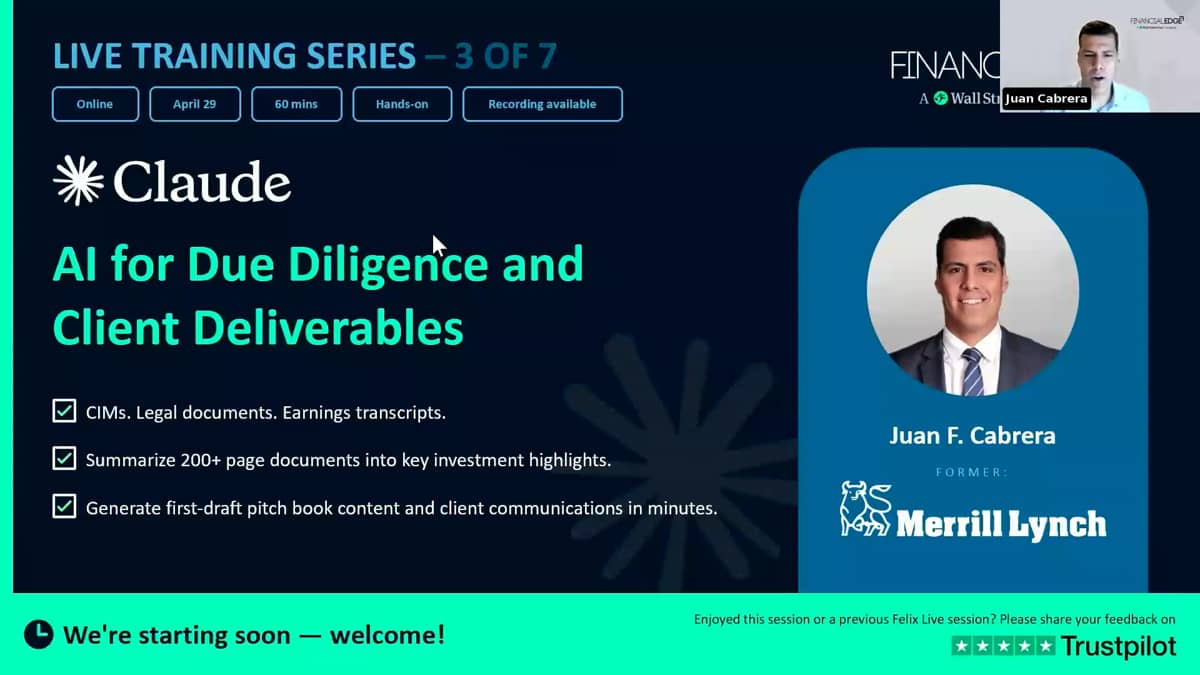
- 57:35
Anthropic’s Claude is making significant inroads into banking, with leading institutions deploying autonomous agents for compliance, transaction accounting, and due diligence workflows.
 AI-Powered Due Diligence with Claude Summary
Glossary


Transcript
Hello, everyone, and welcome to our third session in our AI training series.
Today we're going to be covering using Claude in real investment banking workflows across three use cases in sell-side M&A, ECM, as well as leverage finance.
By the end of the hour, we're going to be producing three to four deliverables. So that's sort of our output.
And of course, we're going to go through tons of features in Claude.
Now, before we get to that, a quick line on myself.
My name is Juan Cabrera. I am a financial trainer with Financial Edge. I started my career as an analyst at Merrill Lynch, and then I went back for a PhD in quantitative finance, where I actually worked and did some research with, at the time, they weren't really called AI models, but deep learning kind of research. So it's exciting to be doing this again.
For the last 15 years, I've trained bankers across the street on the sell side and buy side, and for the last couple of years, I've actually been working directly with banks in helping them embed AI tools and AI technology into their workflows.
So I'm really, really excited about this session, especially because it's Claude.
As you know, if you were attending the last couple of sessions, there were more specialized tools for financial modeling. We looked at things like Shortcut and Endex.
But Claude, of course, as you already know, is a tool that is broadly well-known. However, it's got great features, and it can be really used in investment banking workflows. And that's really my goal for this session is to show some of that, showcase some of the features, look at some workflows, and see what are the things we can do with this amazing tool.
All right. Now, one quick thing before I forget, is that there will be a quick survey going out to you by the end of the session.
Not right now, but at the end of the session, you will see it on the chat. Okay? Also, of course, feel free to use the chat. I will read your comments, your questions whenever possible, and I will read the questions out loud and answer some of them, the ones that I get a chance to answer. Okay? Let me change my screen here.
And there we go. So here is a sense of what we're going to be covering today.
As I already explained, this is about using Claude in investment banking workflows.
As I already said, we are seeing other, more specialized tools across the series, like we have in the past two weeks, and next week, I'm going to be back with you looking at another very specialized IB tool, which is Rogo.
But today is all about Claude, and this is our outline for today.
First, let's talk about why Claude for IB due diligence. Right? What makes it unique, what makes it strong for this kind of work? We are going to be covering nine features in Claude within the hour, okay, and I'm going to show you those features.
And just for your own knowledge, the nine features we cover are core features within Claude. Is there more? Of course, there is more. We only get to cover those.
We're going to be looking at three investment banking use cases, as I already mentioned.
Things like extracting and summarizing a SIM, looking at credit agreements and generating output from that, and then looking at due diligence Q&A and doing some cross-referencing.
Now, the reason we look at these three use cases, not only because they're very common, but also because Claude really excels in some of these tasks across these use cases. So I want to make sure I highlight that.
And of course, we're going to end the session with a few takeaways.
And of course, if we have time at the end, we can leave some time for Q&A.
Great. So let's start with why Claude for due diligence. So it comes down to really three key strengths, right? Claude is built for processing long documents. With 200,000 tokens of context, it can actually read an entire SIM in a single pass, right? And that makes it very, very efficient in reading, summarizing, and extracting data from this very large document. So this is a key, key strength, especially given that we deal with these kind of documents quite often in banking. So that's one key reason why Claude excels in this kind of work, which is due diligence.
The other one, and you might already know that, is that Claude itself is very good at structure extraction and multi-step reasoning and logic.
Right? So when it comes to really hard, heavy analytical work, Claude is really good at processing data and coming up with output for you.
Okay? And an example of that we're going to see in the third use case is cross-referencing, which for an analyst or an associate, it can be a very, very time-consuming task, right? And not just that, it's really prone to error. Okay? And I'm going to show you what that's going to look like toward the end.
And the last one, which is a very practical one, and it's one of my favorite is it's what I'm calling here extensibility, but you might think of it as flexibility, right? Claude has, as you know, MCP connectors. It can connect to data services like Fact Set, Capital IQ, PitchBook, and others. And there's tons of those, right? I just read just today that they came up with a new connector to Adobe for creative design. Right? And that makes it justThat much more powerful.
Now, of course, for IP specific connectors, I just named a few, but again, you can really make that Claude your workspace and connect to the tools that you need.
We also have skills, as you know, Claude skills, very popular.
So you can make anything into a skill and you can reuse these portable assets.
And that makes it also that much more powerful and that much more flexible. And even though we won't be looking at these features in this hour, there is tons of other features that Claude offers.
And some of those specific to investment banking, quite useful to this kind of workflow is Claude in Office.
And that is the ability to simply open up an Excel workbook and start working with an add-in of Claude, within Excel, within PowerPoint, but also more recently within Word. So now you have Claude assisting you across your entire Microsoft Office stack. And not just that, there is also what's called cross-app context awareness, which is great.
That means that all three, let me call them all three Claudes, across your three Office apps actually share the context, so you can interact across apps within Claude, which is again, another very powerful feature. We won't get to that in this session.
Again, I said I was going to cover the core features only, but these are all great reasons why Claude is great for investment banking in general, but specifically in this hour for due diligence and for generating deliverables.
So the way to look at Claude, and that's why I have the line at the bottom, is it's basically a very strong reasoning engine with the flexibility to plug in into your firm's stack.
Now, to the nine features I'm going to cover.
These are the nine features. These are the core features and the nine features.
I'm going to be working on everything within Claude Desktop.
But I'll be doing everything within Claude Chat. I won't be going into Cowork or Code.
Just within Chat. Even though I have access to it because I'm working with a desktop app, it's going to be strictly within Chat. All right. Let me see.
Sorry, I'm just reading a question here.
I'll defer that question to the end of the session. It's a question more about logistics, and payments and things like that, but I'll take care of that.
No worries. All right, great. So these are the nine features we're going to look at. Uploading files directly into a conversation, into a chat.
We're going to look at artifacts and interacting with artifacts.
What's great about artifact is that it sort of serves as a way of co-working with Claude in generating a draft.
So we're going to look at that. We're going to look at file creation.
As you know, Claude can create files across, for example, Microsoft Office apps like Word, Excel, PowerPoint, and so on.
We're going to be looking at project scopes, and persistent memory, and persistent context within projects.
So simply looking at how we can create a project and what are the features of projects.
Custom instructions, you might know them as system instructions, which are as you see there, project scoped.
We're going to look at skills as well.
Not only are we going to look at skills, we're going to build a skill together, and we're going to install the skill and reuse the skill. Okay? Towards the end, we're going to be looking at adaptive thinking, which is a relatively new thing within Claude. This came up with the new model, Opus 4.7. Before this, it was called extended thinking. So, we're going to look at adaptive thinking and the power of adaptive thinking. If you ask me now, how should I do my work? Well, I would say, assuming that you have these kind of usage limits, that you would work on 4.7, with adaptive thinking turned on for this kind of work specifically.
And then we're going to quickly look at web search.
So things we want to look at are obviously outside the scope of these nine features. But web search is something that you can toggle on and on to give Claude the capability to go online and scrap data and get data.
And we're going to look at a specific case where we actually verify claims against real-time market data through this feature.
Okay, so that's our stack of features for this session. I'm going to move on now to my desktop app.
Let me close that.
Great.
All right. So let's do a quick overview, and this is going to be quick, overview of the Claude UI, the interface. It's pretty nice. It's actually quite similar to other tools.
They all sort of tend to look the same.
Now, just a few things I want to mention here.
One thing is that on the left, of course, on the top left, right here, you have your three modes.
Chat, you can go to Cowork, you can go to Code. So these are your three modes we're going to be working within Chat only. And to the left, you basically have your workspace/history panel. You can create new chats, you can open up projects, you can open up your artifacts. You can also customize your Claude.
We're going to be looking at customize when we actually look at skills, how to read skills, how to install skills, how to turn off and on your skills.
Below that, I collapse things because there's a bunch of chats, and I want to keep it clean. But below this, you will see some additional projects and additional chats in my history.All right.
Just one mention as far as the models here.
As I already mentioned, Claude has Opus 4.7 recently available.
And the ability to turn on and off adaptive thinking. Okay? But remember, the legacy models are still there, still available over here. So I could switch if I wanted to Opus 4.6, and here, this is called extended thinking. Slightly different.
I can toggle that on and off. Right? I'm going to be working with Opus 4.7, and I'm going to keep my adaptive open. All right? Great. Now, there's tons of things I can say about the interface here, but I think it's best if we jump into our first use case.
So let me give you a bit of context on that.
This is a scenario we're going to look at for the next 10 minutes. Okay? Imagine you are an analyst, and you've been staffed on a sell-side process, and you've received the latest draft of the CIM, confidential information memorandum.
Your VP needs investment highlights, so you're going to build an investment highlight memo for internal review only by morning, and you also need to draft a teaser content. So the content for a teaser for potential acquirers. Okay? And we're going to build this, as I said, in 10 minutes.
So this is obviously a use case within the M&A advisory function. The source of information in this specific case comes from the CIM draft, and our deliverables are going to be an internal highlights memo and an external teaser.
So let me go ahead and go to Claude here.
And of course, the first thing you want to do, and this is where I want to show you the file upload feature. Of course, you can click on the plus sign here, and there's tons of things here, including adding files or pictures and so on.
That's very straightforward. Let me actually turn this off.
By the way, and this is my personal preference, but it's your choice.
Right here you will see this ability to change the style.
Now, you can do this in many ways, right? But this is one quick way you can change this style.
Now, my preference is that my answers and my work is concise, to the point, brief. Right? So I tend to choose this style here.
I make sure that little leaf there, or pen, is there when I'm working. I won't do it now, so I can have a more standard setup.
But just keep in mind, you can have those styles immediately chosen from that little menu. Now, the first thing I'm going to do for this example is I want to bring in the CIM, and of course, CIMs could be very long, 100 pages, 200 pages. Right? I have created a CIM for training purposes, okay? So everything, all information you see here is hypothetical.
Right? It's not real information of any type for any company.
Anything that might look real, it is a pure coincidence. Okay? So that's my disclaimer there. Let me go ahead and bring the CIM over.
So I'm going to take a PDF.
I'm just dragging it. There is my PDF.
I dragged it from my file explorer, and I can just drop it to chat directly.
Right? That's a quick way of just dropping your files in here. Okay? Now, let's go ahead and build this investment highlights.
So I'm going to go ahead and copy-paste a prompt.
All prompts are pre-built.
The reason is because we want to actually fit the work within the hour, of course. So here is the prompt. Okay? Now, this is not about prompt design.
This is not about prompt engineering. Right? This session is just about practical use of Claude and investment banking.
But for the first prompt, I just want to give you a sense for how this prompt is built and how I know it's going to provide me with the right, or at least, reasonable output. Okay? So the first thing we're saying here is you are an investment banking analyst on a sell-side M&A engagement.
By the way, if you are working on your own account, you can set your profile behind the scenes. Right? So you don't have to tell Claude this kind of thing. All right? And also, Claude will read the context of your prior history, and it would understand who you are, what your profile is. Okay? And that's one reason I strongly recommend to keep your account for a single type of work. Right? If you start bringing different context into it, then your Claude would not really narrow you down that well.
But anyway, I put it directly in the prompt.
So you see here, you're an investment banking analyst on a sell-side M&A engagement. That's your persona, that's your role. Right? Then the task. The task is review the attached CIM and pull together a structured, keyword, structured, working summary covering. And now the structure is provided.
So specificity is very, very important when you're dealing with AI tools. Right? So it's very specific.
I'm saying, "Look, this is what I need." So clearly, I had a look at the CIM before doing this. This is not just some open-ended question, right? And I'm saying, "Hey, I want you to give me the following summary." Okay? Across all these five key areas. Now, once I set up the task and some of the context, here I have the format I want, my output format, very important. Right? How do you want to get your output is extremely important.
So in this case, because I want to build an artifact specifically within Claude, I said, "Hey, produce this as a markdown file." Markdown is an extension file type. Right? Like a-Doc or Excel.
It's almost like a text file. So produce this as a markdown artifact in the side panel. That's very specific, as you can tell.
And the reason I did that is because I wanted to make sure that's my output.
I do not want, and Claude will do this, I do not want Claude then to produce a file, create a Word document. Right? I want Claude to specifically give me this artifact on the side panel.
Don't create a file. So I had to be very specific here.
That's how you want to be, very specific. Okay? So a question here, what is a markdown artifact? So two different things, right? An artifact is a type of object that Claude will create, that is typically built in either HTML, it's built in a markdown format, and SVG. So these are typically outputs that show up on the side panel of, I'll show you that in a minute, of Claude's interface, and that you can interact with directly. But it doesn't create a file, even though in a way it does. All right? So let's separate the idea of artifact from markdown.
Markdown is just a file type.
Okay? It's actually quite nice because it's really light.
So you can upload it, and you can have Claude read through it, and it would read through it really quickly.
Let me just add to that, because that's a really good question, actually.
When you ask Claude to create a markdown file, it's going to be a lot faster, a lot more efficient than if you ask Claude to create the same thing on a Word document.
And the reason is that the amount of work and back-end coding that it takes to create a Word document, it's way more. 10X, I'm just making that number up, but way more, right? Why? Because now Claude has to worry about not just coding the content, but coding the actual format of Word, right? And that takes a lot of heavy work for Claude. So if all you want is a quick summary, you can do it in two ways. You can do it in chat.
Right? Just give me the output in chat and Claude will be quick.
Or you can do it as a markdown artifact. That's what I'm doing here. Okay? Now, the reason I'm doing it that way is because I'm doing a working draft.
This is not my deliverable. This is just me seeing the output so that I can work from that and then iterate to get my deliverable. Right? As you already know, probably iteration is key when you are collaborating with AI tools. Okay? So, let me press go on this. I should have pressed go on this before, because now Claude would have had my answer by now, but that's a really good question. By the way, I already have the output, okay, on these things, so I can show you that. But since this is the first pass at reading a long document and having Claude extract and generate from this long document, I think it's a good idea that we actually look at Claude working live. Right? So you can see that Claude is giving you this heavy task, right? It's reading through a lot.
And not just that, it's generating a markdown.
As I'm talking to you, you can see Claude is actually telling you exactly what it's doing, which is extremely powerful.
Right? Because you can see, okay, now it's drafting the summary.
Right? Now, I asked for page citations, so it's doing that additional work.
Right? So this is the multi-step logical reasoning structure way of working that Claude has that has made it so powerful for these kind of workflows for us. All right? So it looks like it's still drafting it.
I'll give it a moment.
Perfect time for a question if you have a question.
And also perfect time to say a few more things about the Claude interface. So the one thing that is relevant right now is we're building an artifact, right? A working draft of my workflow. So you can click on this little top right icon, okay, which just looks like a page, right, and it says Open Sidebar.
You click on that, and you have here, so far, we have our content, which is whatever it is that we just uploaded, which is the sim. Right? Now, when Claude generates artifacts, it will actually put them on that sidebar on the right side.
Okay? Now, the other thing I'm going to tell you about while we are doing that is just a couple of things on shortcuts. Right? It's nice to work with shortcuts, but there is a universal shortcut, one that you need to know in Claude. Right? In case you don't know it, it's going to be Control + Forward Slash.
Okay? And the reason I'm saying that is because if you press Control + Forward Slash, what happens is you get a list of keyboard shortcuts. So if you ever forget your shortcuts within Claude, just remember one, okay, and that is Control + Forward Slash.
And it will show you everything you already forgot.
Okay? Yes, it can. The question here is, can the same thing be done in Claude Code? Yes, it can, but it's not as user-friendly for the kind of work we do. Right? And Claude Code is meant for developers. Right? It's great as well, right? But yeah, unless you're building internal tools at a bank, not really something that is as needed and as useful because we tend to have intellectual work, right? Collaborate intellectually.
Okay?Great question. Is there a reason why we asked Claude to think as an IBN? No, not at all.
We can ask it to think as any level banker.
Okay? It's just that the more specific you are about the persona and the more specific you are about context, the more precise your output will be.
This kind of work is work that I am assuming in my use case is being done by an analyst. Okay? So I wanted to have that context behind the scenes. Anyway, here we have our artifact being created.
This is a markdown file. Of course, you can download it, you can copy it.
If you ever make changes and you want to see the changes, you can refresh that.
If you're connected with Google Drive, you can open it in Google Drive. Okay? Sort of when you click the Google Drive button, it would download it there, and it would open it for you.
Now, the key here is that you can see, you can quickly read, and this actually looks really nice, right? You can quickly read without much work what the summary is. And it did everything I asked it to do, right? It gave me a company overview, financial highlights, investment highlights. These are very important for us.
Okay. Sorry, let me just check something.
Okay. I needed to open something else.
I'll answer your question in a moment.
Anyway, we have investment highlights, risk factors, and then notable considerations, deal considerations.
Okay, so we have everything we need.
Now, how do I interact with my artifact? Well, you would interact with it like you would with any other artifact or even any other file. Okay, so let me go down here and let me do something.
All right.
Let me add a refinement prompt. Now, by the way, as I'm looking through this, let me say this upfront because this is a way our mindset should be when we're working with AI tools in this kind of analytical role. Right? Don't trust anything. Okay? You want to verify every number, especially numbers, more than anything else. Right? Because from the numbers, we get the insight.
So verify every number before you move on.
So what Claude will do for you is it would help you with 80% of the work, but that's the 80% that is mechanical work, getting the summary together.
You now can focus on verification and judgment and strategic thinking. Should I include that? Should I move that up? Is that more relevant? Should I remove that piece? Should I rewrite something? So that's really where your brain is being used now, not so much on actually creating that summary, which is the most time-consuming part of the work. So this is where AI and Claude can really accelerate your work.
Anyway, let me now refine this. So notice one thing.
If you go to investment highlights, it has basically seven highlights. Right? I asked for five, seven, I believe.
So it's got seven of them. Now I'm going to refine my work, and I'm going to paste a new prompt.
And if you look at the prompt I pasted, it says two things.
Add a one-line investment thesis at the very top.
So when I deliver this to my VP, I want my VP to just read that top section and get a sense for the entire summary really quick.
Right? So I want that, and I also want section three, which is the one that you see on the right panel, to be adjusted.
I want it to sort of to have tiers to tell me, okay, which ones are the most credible highlights to a buyer, and put those first.
So I want you, Claude, to analyze the investment highlights from the original source and decide which ones are most credible to a buyer. Now, of course, I'm going to have an input on that, and I can change that anytime. Okay, so let me run that.
In the meantime, I have a question here, so let me answer that.
The question is: When you make an iteration to the prompt, which I just did by the way, do you copy-paste the whole prompt or just continue from the initial output? So, great question. I think I already answered your question by doing what I just did. You will just continue from the initial output, and this is the reason why working with artifacts in-- You can see my workspace. This is the way we should work, right? We should look at our work on the right side.
Don't create files because that's heavy, right? That consumes your time, and that's not your final deliverable, right? So just work with that and iterate, and you will see the right side changing live, and you continue working that way. Okay? Another point here, very good point.
These investment highlights are being taken from the uploaded document.
I suppose it won't search the whole web. That's correct.
That's correct, and don't forget the context and the use case here. The use case is we've received an already built draft of the SIM, and all we want is a summary, right, built as an internal memo. Right? A follow-up point is, then is it RAG? I guess conceptually, you can call it that, right? Conceptually, even though RAG is a much more technical concept, right? Because it involves the vectorization of a database that is a first go-to source every time you use the AI tool. Right? But it's similar in concept, right? That we're actually going into a source.
You know how I would put this? I would actually put this asWe are grounding the output on a true source, which is extremely important in banking, right? You don't want it to hallucinate.
You don't want it to create things.
You want to ground your output on a data set or a data document. Okay? Unfortunately, not possible to make direct edits to artifacts.
So you can try that. You can highlight things, and it won't do it. Okay? You can, by the way, just remember, since you said that, asked that question, you can actually do this in chat. Not artifact, but in chat. Okay? You can highlight a section, and then it will say, "Oh, do you want to reply to that?" So if you're working in chat, which is another way of working, I just don't think it's as efficient, you can actually ask Claude to directly address a specific issue or area of your output. All right.
Anyway, I made the changes. So let's look at the changes. Okay? Very top, you see this investment thesis is there.
Okay, perfect.
So that's there. That's nice. Make sure you read it and you verify.
Always verify, never trust. Then if you go to investment highlights, you will see here lead pillars most defensible to a buyer. Now, notice this is an internal memo, okay? So it's okay to have that there, right? This is not client-facing.
And then here you have the three key ones.
So Claude has gone back, it's read things, and it's decided. Do you agree? If you agree, move on. If you don't, of course, you want to revise again.
Okay, great. Let's move on because we have lots to do and not a lot of time is ticking.
Let me move on to the next piece, and the next piece is to actually create a Word document.
And I'll let it run, and then I'll introduce the next use case, okay? So still within this use case, here is another prompt. Okay? And again, it's always good to read prompts because prompts is how you communicate with the tool, right? Take the investment highlights section from this memo, which I'm already comfortable with, and write five concise bullet points suitable for a one-page anonymous, of course, teaser document.
And it keeps on going. Okay? And notice that because it's an anonymous teaser document, it says, "Remove any company identifying details." This is extremely important in this specific request.
And then it says file create or produce this as a Word document ready for distribution. Okay? You can iterate through that as well.
But now you're really getting to your final deliverable, okay? So I'm going to click on that, and I'm going to let it run. Just one comment.
Notice how here when Claude produced the artifact, right? It allows you to actually click on it here and open it.
So I can close it here, and then I can just click on it here and it will open it.
Now, in my case, because markdown files, MD files are text in a way, in my case, it tells me, "Hey, you can open this in VS Code," which is usually what I use.
But in your case, it might give you another option, okay? Or the same option, okay? All right. So let me read a question here.
So question is: Is there a data source verification tool that highlights where specific numbers or statements were taken from the in-source document? So let me tell you what. The answer is yes and no.
So why do I say yes? Because you can have Claude do the same thing, right? What was unique about Shortcut is that it created that specific feature, right? Because it's a specialized tool for a specialized task, which is financial modeling. Right? So it knows exactly what are the kind of things you need.
Claude is a broader kind of scope tool, right? But you can do exactly the same thing.
You can say, "Hey, go and verify the source for every single thing you're telling me." Right? And it will do it. Okay? All right. So while this thing is working, I want to mention one thing. Notice how the first thing it says here is that, "I will read the DOCX skill." So this means that Claude automatically said, "Oh, I need to create a Word document. I have a skill already built into Claude that reads and creates Word documents. So let me go and fetch that skill and use it." Okay? And we're going to see skills next.
All right? Great. So instead of spending time on this, let me show you what the finished product will be. I already ran this.
Of course, it won't be identical because we have...
Oops, sorry, clicked on the wrong thing.
Because every run is not exactly the same, although that's our aim, structure repeatable workflows. Okay? So this is it. This is what likely you're going to get, something like this.
It's a very short summary in a Word document. Now, of course, do you like the formatting? You can tell Claude, "Here is a template formatting.
Use this kind of formatting every time." Okay? And over time, from my experience, Claude has gotten better and better at following formatting instructions.
And also it learns from its own work.
So the more you say, "Hey, you missed this piece of format.
This should have been this color," it would learn, and the more you use it, the better it gets at it. Great. So let's move on to the next use case.
And that one is-- Oops, I always press the wrong thing here. So let me move here.
Or before I move on, quickly on this use case, what do we see? We looked at how to upload files and generate deliverables.
We looked at how to create artifacts and how to iterate through them.
And the main thing is the one in the middleClaude is a first draft engine. It's not a final product engine. It is meant to be used as a first draft, and is meant to save you not 100% of your time, right? But 80% of your time. Okay, great. Next one, we're going to be looking at-- I'm going to move a little faster because now we sort of have gone through the intro, but we're going to look at reviewing a credit agreement, okay? So you are on a leverage finance team, and a PE-sponsored client is looking to do an LBO, needs your team to review the target's existing credit agreement before structuring the acquisition finance.
So this is a very preliminary kind of due diligence as well step. Okay? So we need to review this existing credit agreement. But this time we're going to do it in a reusable workspace. So I'm going to introduce projects. Okay? Let me now go back to Claude, and let me start a new project.
Okay, so how do you do it? You go to Projects, go to New Project, and here we are. I am going to call it LBO Financing Review, just because you can call it something nicer, right? Actually, I'm going to call it Deal X.
There you go. Okay. If you want a quick description of a project, the more context you have, the better. So I would use that, of course, if I were you.
Here's my project. It has been created.
Now, this is a workspace that keeps the context within that workspace, right? Meaning that any memory specific to the workspace, instructions you provide can be project-wide. So I can provide instructions, and I will, that apply to the entire project.
There's going to be multiple chats containing this project, and that whole history is part of your context. You can put files on the right side that you can read from any chat, all within this project. So it is a workspace, and it's something you can share with your coworkers. So you can have a deal team work within a deal project, and share the files and share the output from this thing, and also collaborate.
Okay? All right, so let me move on. And I have a question about formatting.
I'll answer that in a moment.
But let me start with this. The first thing you should do when you create a project is take advantage of the project features, right? So the first thing you will do is use what's called the system instructions or custom instructions. Over here, Instructions, click on that.
I already have my instructions, okay? But these are project-wide instructions.
I won't really get too much into the detail because of time management. But you can see here, you're defining the persona.
You're saying you're a leverage finance analyst reviewing legal documents, and you're saying you review credit agreements.
So this project is meant to review credit agreements, because remember, these instructions apply to the entire project, which might contain multiple tasks or chats. Okay, so I think I already answered your question about what exactly is the difference between a new chat and a project.
A new chat lives within a project. Okay? My recommendation is use a new chat for every new task, okay? Not to overwhelm that chat with too much information.
Keep it specific to your task, and then if you want to start a new task within the same workspace and project, I would start a new chat, okay? Anyway, in this case, I'm giving it specific information about what to look for, and I'm asking it to extract and organize, okay? And I want covenants, I want the pricing grid, I want prepayment provisions, change of control provisions, and so on. Okay? Then, of course, I am telling it how to format the output. And in this case, I'm just saying, "Hey, give me structured tables." So because of the way I'm putting that here, I'm not saying create an artifact.
I'm not saying create a file, right? It's likely that Claude will do things in chat, meaning that it will give me the output on the face of the chat, not on the side panel.
But hey, sometimes Claude will improvise, okay? So once I save the instructions here, I want you to really see something.
These instructions apply to every chat.
Claude will read the instructions every time I start a new chat and I work through any chat. Okay? So look at what happens.
What happens now is I can take my credit agreement.
So I'm going to come here.
I'm going to open files. I'm going to upload from device.
Okay.
I have too many windows, so I'm not seeing my upload.
Yeah, that's what happened.
Okay, it's hidden.
It's hidden somewhere in all of my windows.
These things tend to happen. Too many screens, too many windows.
All right, I can always default to the one that I already created.
Give me a second.
Yeah. So I had to drag it because the upload window came up, but I didn't see it in my three screens. Anyway, I'm going to paste it here.
Now, this file is there, and I can reference this file from any chat in this project. You see how this is a workspace, right? Great.
Now...
This is not a good thing.
Yeah, so now this is-- Let me go back to projects. Go back here. Okay, so we're back. We have the file, we have the system instructions, and now watch this. Look at my prompt. Okay, my prompt is going to be this.There you go.
That's my entire prompt. "Hey, review the credit agreement and extract all key terms per the standard framework." And I say a few more things. Really short prompt, right? Because most of the instructions are actually coming from the system instructions.
So next time, I can just go in here, put a new credit agreement, and I can just run the same prompt in a new chat. Okay? Now, when I run this, it's going to give me an in-chat summary, which is great.
Okay, I won't really wait for it.
Let me just see my next prompt while this is running.
Give me one second.
So you can see it running, right? And it's thinking because I'm in 4.7 Opus Adaptive.
Just looking for my-- Making sure we can get through this in time, right? Yeah. So this is what I will do. I will wait for this to run.
In the meantime, I want to show you what the output looks like. Okay? And I'm also going to answer that question on formatting next.
I haven't forgotten about you, of course.
All right. Okay, so the question is: Is there a way of teaching Claude all the formatting steps in one session, so it applies it to any future requests? I'm thinking about how to answer that properly, okay? The reason is that there's many ways of doing that, right? When you say formatting steps in one session, we have to define what the session scope is. Right? I think the best way to do it is to open up a chat and provide Claude with a template from a PowerPoint, Word document that contains the format, ask it to extract the format, and ask it to create formatting instructions in a file that you can upload into a project that you can reference.
That might be the best workflow, right, for you to get your formatting in place.
Now, there's other ways to do it, right, but that's one way.
When I say in one session, that's how I'm reading your question. Okay? Anyway, here's our answer.
We have our in-chat and everything was extracted.
Okay? Now, what I was going to do next is I was going to say, "Okay, next prompt, take this and create a document from it." But we've already done that, so let me skip that step, and instead, let's move on to skills. I want to make sure I cover that.
So it's really, really extensive, really good. Look at this.
I mean, this is amazing, right? How much detail.
Don't forget to verify.
That's correct. So, we have a comment here that says you could also create skills for formatting and use it for your project. Correct. Because the skills are portable.
I'm going to talk about skills next. Okay? Now, by the way, if you're working on CoWork, you can create a markdown file that contains your formatting instructions, and you can reference that folder directly as well. Okay? So that's even more global, I think. Okay? All right. We're done. That's my summary, and it's great. Now imagine, of course, this is a simple example, but imagine that you wanted to do this over and over again in a repeatable way, but not only within this project. What if you get staffed in a new deal and you have to review a credit agreement, and you're like, "I just want this summary that looks amazing that I've done before." Right? "I want exactly the same structure.
I want everything the same." This is what you do.
You take this specific chat, this whole conversation, and you convert it into a skill, okay? And then you can reuse the skill. So let me explain what that means.
I'm just looking for my prompt here.
All I'm going to do is paste this, and again, I'm just saving time and pasting my prompt, but you could type this. It's really straightforward, right? Based on these custom instructions, generate a skill file, thus the name Claude gives it, skill.md, that I can upload as a reusable credit agreement review skill.
So yeah, I'm creating a skill that reviews credit agreements based on this context here. Okay? I run that, and while this is running, let me show you what it looks like. Okay? Let me go here and let's-- I've done this already.
This is what it looks like, okay? It creates a skill, and it will give you the markdown file. Now you can take this skill that is there, you see it. You can download it to your-- I would download it if I were you to your folder just to keep it as a file.
But you can also just save it. What happens when you save it? When you save this skill, what Claude is doing is installing this skill into your Claude account so that you can use it. Okay? So this is what I mean by it.
You go to customize, okay? Go to skills, and you will already see this credit agreement review skill.
This is the one I just created yesterday when I was preparing the session, right? When you click on save skill, it will create this skill. It will add it to your personal skills, and then you can click on it sorry, to read about the skill.
So everything the skill does is this right here. That's what the skill does.
You can read it. These are all instructions.
It's just basically a markdown file with-- Sorry, a folder that contains instructions as well as reference files.All right? Just so you know, you can turn skills off and on.
So, for example, I have a skill called training, which is actually something I use. I have it turned off right now.
Credit agreement review is on. If I turn it off, then I won't be able to use it, okay? Which is nice, the ability to activate the skills.
So I'm going to turn it on because I just want to show you what it will look like if you use it. I'm going to go back to a new chat, and I'm not going to run it, but I will just tell you how this works. All you do is you type forward slash.
Actually, let me start over. I'm going to bring the credit agreement onto the chat.
Let's imagine this is a different credit agreement.
A new one I was handed. I'm like, "Hey, summary." And you're like, "I have a skill that can summarize this thing perfectly, just like I wanted." Okay? So first, you upload it, and then you can click the forward slash, and you will notice that you have options here.
You can add files, so it's a shortcut, or you can simply choose a skill.
You can also type credit agreement, right? But I'm going to just click on it, and it gives you a quick overview of the skill.
So click on it and notice how it's blue.
That means that that's a skill, that you're actually using a skill.
Then I can just press go. I won't press it, but if I press go, it would do the same thing I did on that project before.
It would create exactly the same output, but now for a different project. Sorry, for a different credit agreement. Okay? Good. So we are about five minutes from the end.
I covered most of what I wanted to cover. I did have a third use case.
Let me show you that now.
The third use case, I think it's better if we at least talk about it, but let me say what we cover in this one. Right? That's the wrong number in there. It should be two out of three.
We looked at custom instructions that carry the deal. Right? You should spend tons of time building the custom instructions that drives your project. We looked at skills, and we looked at extracting data from a document similar to the prior one. Right? Now, the last one is, I picked this one for one reason.
I can actually spend a minute and show you this.
This one is ECM workflow. It's IPO due diligence. Specifically, you're looking at management responses to underwriters' due diligence questions. Okay? There's 20 questions that they've replied to in a formal document. Right? And you just want to make sure that the management responses are consistent. So you want to flag any internal inconsistencies in the document. So that's called cross-referencing.
So for example, in question one, maybe they said, "Oh, EBITDA margin is 35%." Okay? And then in question 14, they say, "EBITDA margin is 32%." Right? Exactly the same data point, different-- Now, there might be a reason for that, right? But you need to flag these inconsistencies, and you need to cross-reference this and resolve these issues. So the reason I picked this one is because Claude is extremely powerful with these much more sort of intellectually demanding, analytically demanding tasks. Okay, so I'm just going to run something for a minute, and then I will show you how it's powerful. Okay? Let me go into Claude.
I'm going to get rid of this because I didn't really run this skill, right? If you remember, I just pasted it.
I'm going to start a new chat, brand-new chat. Okay? I'm outside the project. This is a new use case.
And I am going to put a prompt here.
Actually, before I put a prompt, I need to upload the Q&A. Now, if you open this document, I can tell you what it is.
This document has 20 questions from underwriters, and for each question, it's got a reply from management, okay? And that's it. Right? Now, there's only one main thing I want to show you here, and that is that the power of Claude in cross-referencing and finding inconsistencies after cross-referencing. So let me take my prompt in here.
All right. And again, it says, "You're an investment banking analyst conducting underwriting due diligence for an IPO engagement.
Review the attached management Q&A responses and do the following. Number one, cross-reference all financial figures." Okay? "Number two, identify any responses that contradict or are in tension with the other responses." Right? "Flag any questions where management responses are vague, evasive, or just not complete.
And then for each flag, you want to cite." Somebody asked about citations and having a feature, you can just tell Claude to do it.
"Cite the specific question numbers you are comparing and so on." Okay? And there is a little more.
Now, I'm not going to wait for the whole thing to run because we're almost out of time, but I will show you something.
When I click OK, the first thing to remember is when you have this kind of very analytically heavy work, right? Imagine if this were 60, 80 questions. How many pages, right? You want to make sure that you use a powerful model. Right? So of course, I'm using 4.7The most powerful at the moment.
And I am making sure that I pick adaptive thinking.
I need it for this one. So I'm going to click on that. All right? I'm going to click OK or go, and look at what happens within a few seconds.
While this is happening, I just want to say that there's other things that are amazing about Claude that we might cover in future sessions. For next week, and I'm not yet going, I just want to show you something, but for next week, we're going to be covering Rogo, which is a specialized investment banking tool that runs on underlying models like anthropic models and OpenAI models. Okay? Now, what I want to show you is this.
If you look at what Claude is doing at the moment in cross-referencing, this is telling you exactly what kind of work it's doing. So it's saying, "I'm recognizing it is a serious due diligence work." So it's acknowledging the seriousness of this, and that sets the scene for very, very careful cross-referencing. As you read through this, and you should probably read through this, as an analyst, I want to know how Claude is thinking because it teaches me how to think. But I also want to know where the numbers are, what kind of numbers is it. So this context is extremely useful for me as a learning experience, also as part of my workflow to have awareness of what's going on on that specific deal as it relates to my due diligence. Okay? So I'm going to end there because we're out of time, otherwise, I'll keep going.
But I just want to say that the next thing, if you haven't used Claude enough, get an account, go in there, take a document you have, and run it through Claude and ask it to read it, to extract something and generate something from that.
That's something you can do in minutes.
Create a project and start building your own workspaces.
That's our time. Thank you, everyone, for attending. I hope that was useful.
I will see you next week in the Rogo session. Take care.